
- Campaign Details — select your Agent, message template and recipients.
- Assign Parameters — map your recipient data to the template.
- Review and Submit — check your messages before sending or scheduling.
Before you begin
Make sure you have:- A messaging Agent configured for the channel you want to use.
- A Kero message template ready for that Agent.
- Recipients available in your Kero Contacts, a CSV or Excel file, or a configured integration.
- The information required to populate any personalisation parameters in your template.
Step 1: Enter your campaign details
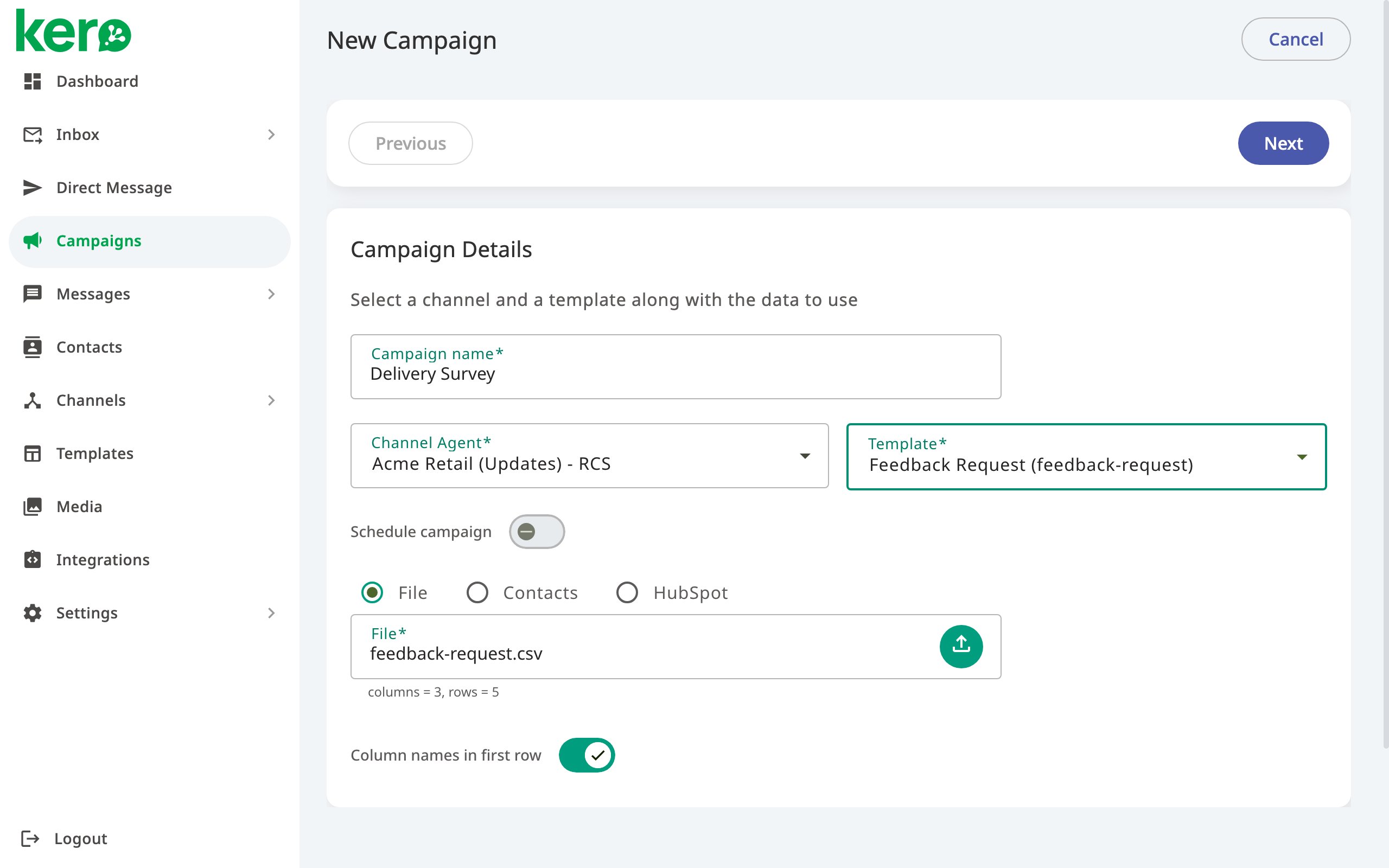
1
Start a campaign
In Kero, navigate to Campaigns.Click Start Campaign.
2
Name your campaign
Enter a descriptive name in Campaign name.Choose something you’ll recognise later, such as October Customer Update.
3
Select your sending Agent
Under Channel Agent, select the Agent you want to use.The Agent determines the messaging channel and sending identity for your campaign.
4
Choose your message template
Under Template, select the Kero message template you want to send.Kero displays templates available for the selected Agent.
5
Choose when to send
To send your campaign immediately, leave Schedule campaign switched off.To send later, enable Schedule campaign and select a future Date and Time.The scheduling fields use your computer’s local time zone.
6
Select your recipients
Choose one of the available recipient sources:
- File: Upload a CSV or Excel file containing your recipients.
- Contacts: Select a segment from your Kero Contacts.
- Integrations: Select recipients from a connected service, such as HubSpot or njuko, depending on which integrations are configured for your account.
Integration options are only available when the relevant service has been configured for your Kero account.
7
Continue
Review your campaign details and click Next.Kero checks that the required information has been provided before allowing you to continue.
If Next is unavailable, check that you’ve entered a campaign name, selected an Agent and template, and chosen a recipient source.
Step 2: Assign parameters
Kero uses parameters to personalise messages for individual recipients. For example, your message template might contain:Hi {{Name}}, your order is ready for collection.
You must manually assign the corresponding recipient data to each required parameter.
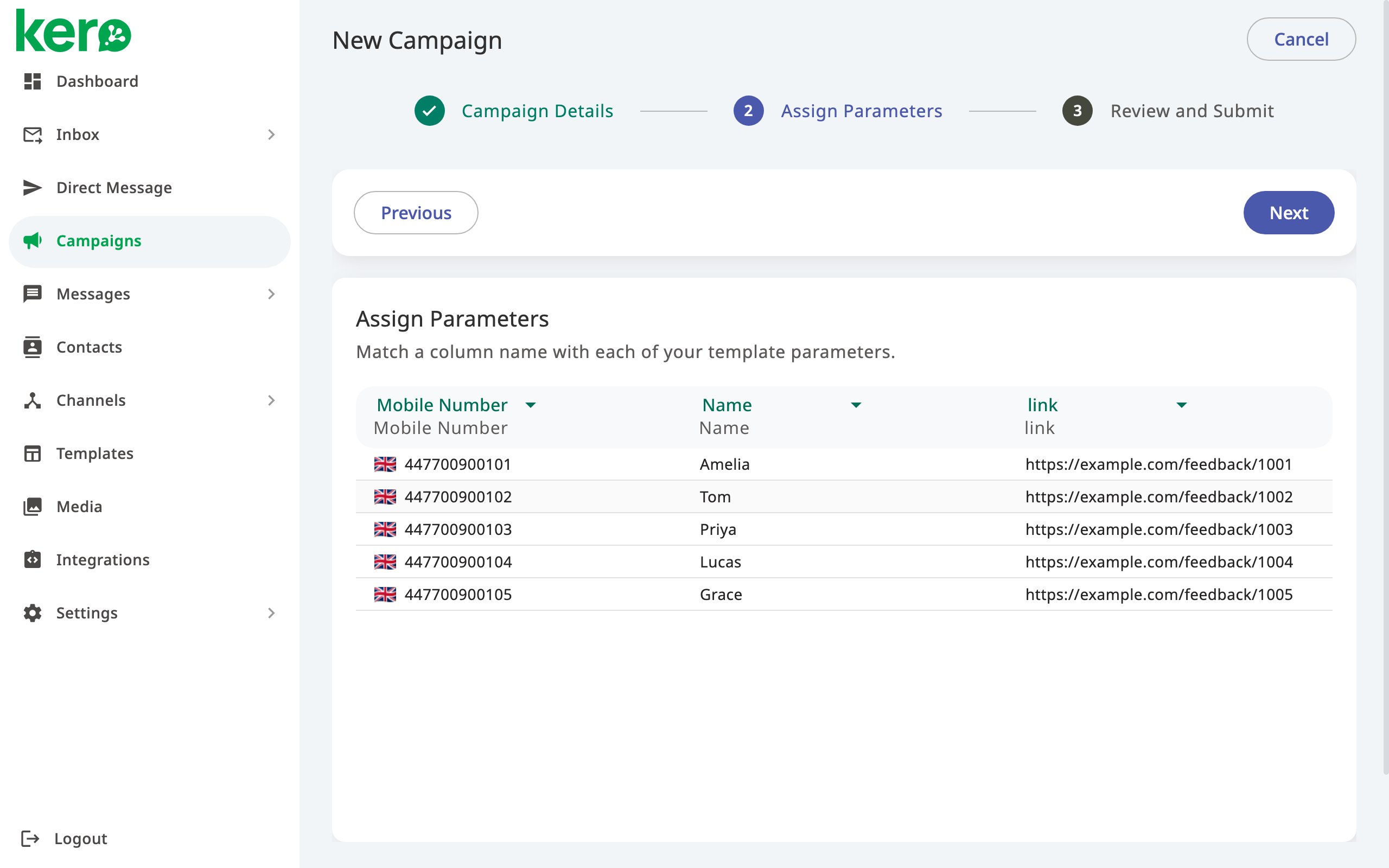
1
Identify the mobile number column
In the data preview, open the dropdown above the column containing your recipients’ mobile numbers.Select Mobile Number.
2
Map your template parameters
For each parameter in your message template, manually select the corresponding column from your recipient data.For example:
Kero does not automatically match columns to template parameters. You must assign each required field using the available dropdowns.Check that each parameter is mapped to the correct column before continuing.
3
Ignore unnecessary columns
Select [none] for any columns you don’t need to use in the message.
4
Continue to review
Check that all required parameters have been assigned.Click Next.If any required information is missing, Kero displays a validation message so you can correct it.
Step 3: Review and submit
Before sending, Kero displays a Campaign Summary and Message Preview. Use these to check that your campaign contains the intended recipients and message content.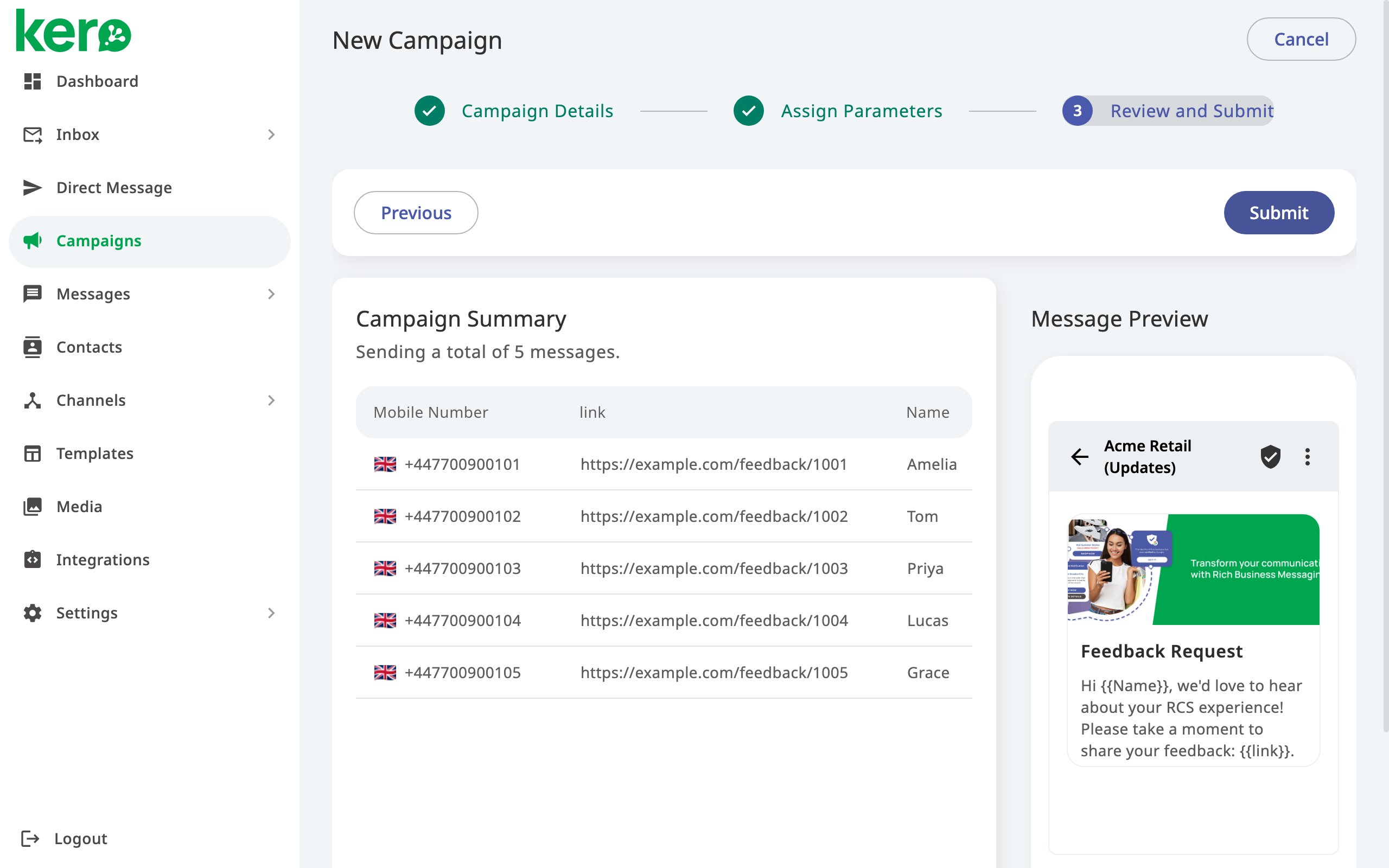
1
Review your recipients
Check the recipient list in Campaign Summary.Confirm that the correct contacts are included.
2
Preview personalised messages
Click a recipient’s row to view their message in Message Preview.Check that personalised values appear correctly and that the message contains the intended information.
3
Send or schedule your campaign
When you’re satisfied with the preview:
- Click Submit to start an immediate campaign.
- Click Schedule if you’ve selected a future sending date and time.
What happens after submission?
Once your campaign has been created, Kero displays a confirmation with the number of messages included.- Immediate campaign: Click View Campaign to monitor its progress.
- Scheduled campaign: Click View Campaign list to return to your campaigns.
Prepare a recipient file
If you’re uploading recipients from a file, use the following guidelines:- Use a CSV or Excel file (
.csv,.xlsor.xlsx). - Include no more than 40,000 rows.
- Place each recipient on a separate row.
- Include mobile numbers in international format, such as
+27721234567. - Include a column for each personalisation parameter used in your template.
- Use column headings in the first row, or switch off Column names in first row when uploading a file without headings.
{{Name}} parameter could use: