
Before you begin
Make sure you have:- A configured messaging Agent.
- A Kero message template ready to use.
- Recipients available through a file, Kero Contacts or a configured integration.
- A future date and time for your campaign.
Schedule your campaign
1
Start a campaign
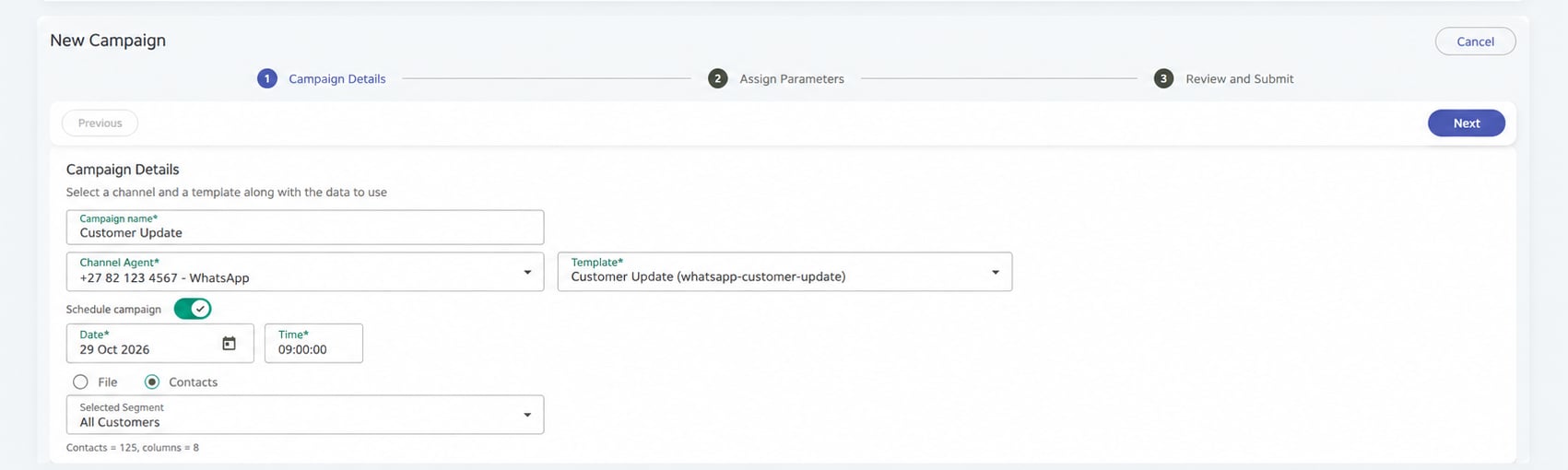
In Kero, navigate to Campaigns and click Start Campaign.Enter a descriptive Campaign name.
2
Select your Agent and template
Under Channel Agent, select the Agent you want to send from.Under Template, select the message template you want to use.
3
Enable scheduling
Switch on Schedule campaign.Select the future Date and Time when you want your campaign to be sent.
Enter the scheduled date and time using your computer’s local time zone.The selected date and time must be in the future.
4
Select your recipients
Choose your recipient source:
- File: Upload a CSV or Excel file.
- Contacts: Select a segment from your Kero Contacts.
- Integrations: Select recipients from HubSpot or njuko, depending on which integrations are configured for your account.
5
Assign parameters
Manually map your recipient data to the required template parameters.Make sure the correct column is assigned to Mobile Number and that all required personalisation fields are mapped.Click Next.
6
Review your campaign
Check the recipients in Campaign Summary.Select individual recipients to inspect their personalised messages in Message Preview.Confirm that the scheduled date, time, recipient selection and message content are correct.
7
Schedule the campaign
Click Schedule.Kero confirms that your campaign has been scheduled and displays the number of messages included.Click View Campaign list to return to your campaigns.
View a scheduled campaign
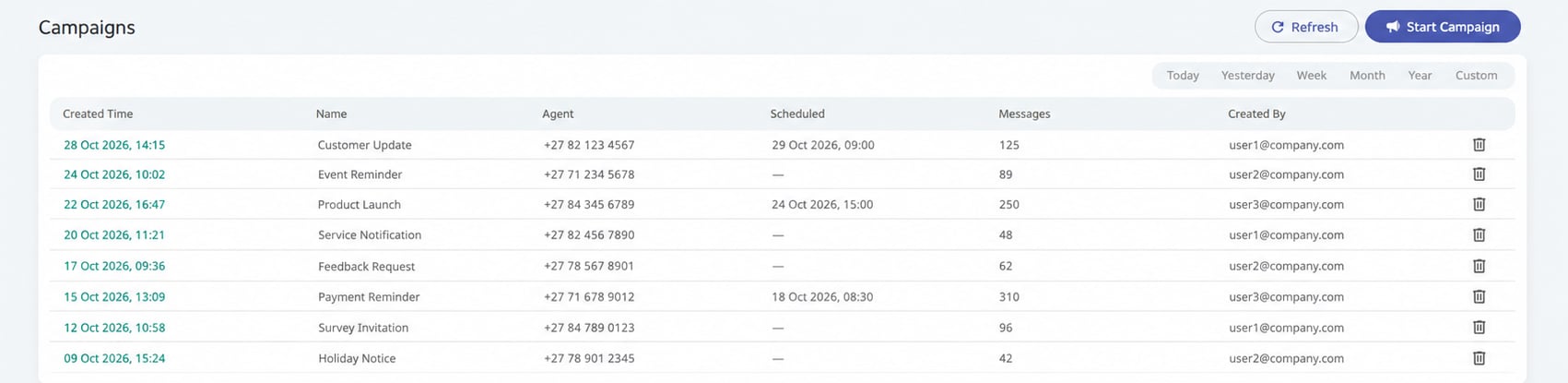
You can find scheduled campaigns in your campaign list.- Navigate to Campaigns.
- Locate the campaign by its name or creation date.
- Check the Scheduled column to see when it is due to be sent.
- Click the campaign’s Created Time to open its details.
Change a scheduled campaign
Once a campaign has been scheduled, you cannot change its scheduled date, time or other campaign details. If you need to make changes, you must:- Delete the existing scheduled campaign before sending begins.
- Create a new campaign with the updated details.
- Review the recipients, message content and schedule.
- Click Schedule to confirm the new campaign.
Kero does not currently support editing or rescheduling an existing scheduled campaign. Make sure you delete the original campaign before creating its replacement to avoid sending duplicate messages.
Cancel a scheduled campaign
If you no longer want a scheduled campaign to be sent, you can delete it before its scheduled sending time.1
Find the scheduled campaign
Navigate to Campaigns and locate the campaign you want to cancel.
2
Delete the campaign
Click the delete icon at the end of the campaign’s row.Alternatively, open the campaign and click Delete.
3
Confirm deletion
Confirm that you want to delete the campaign.Kero removes the campaign and its scheduled sending instruction.