
View your team
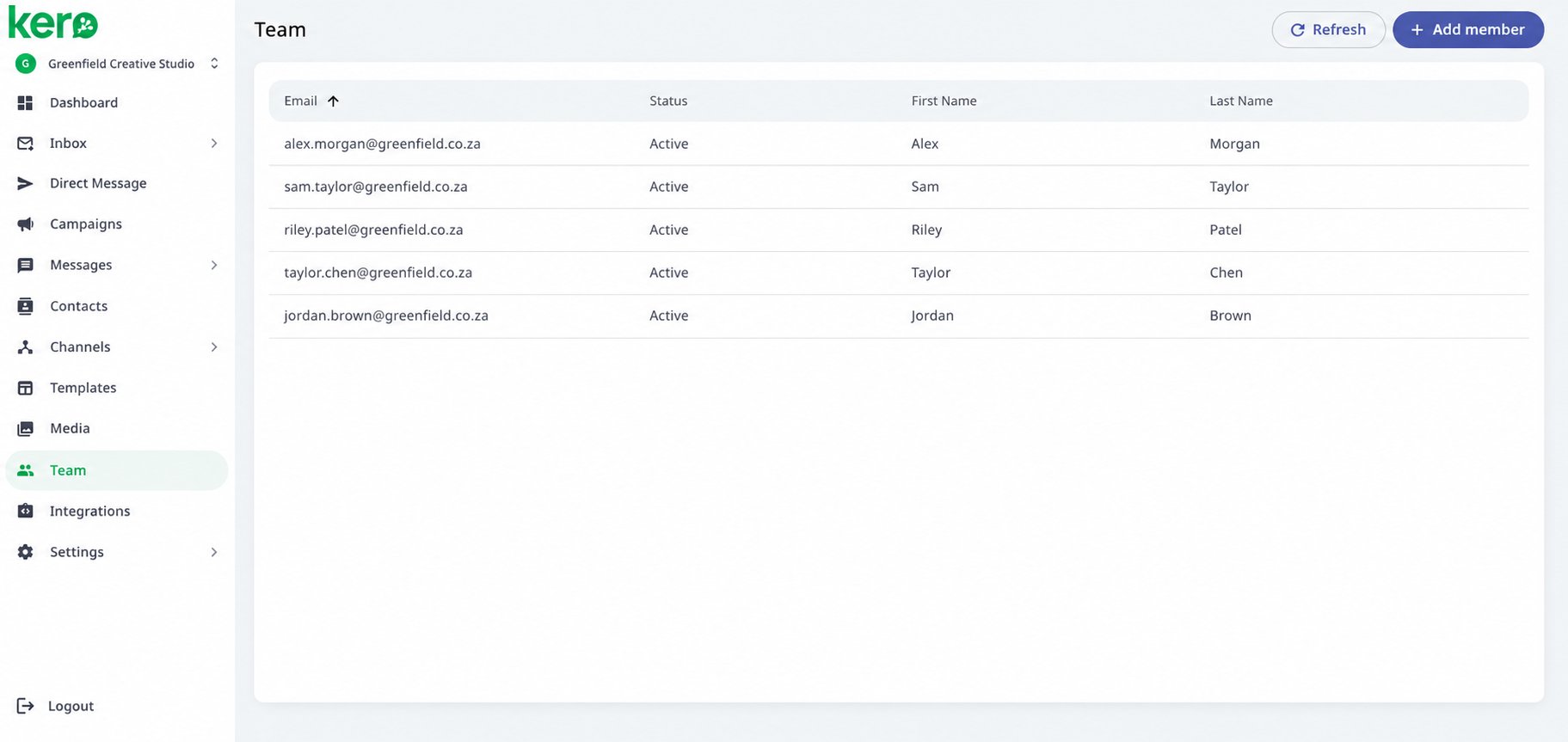
To see the people who have access to your Kero account:- Sign in to Kero.
- Select Team from the left navigation menu.
- Review the members and invitations listed on the Team page.
Understand team member statuses
You can select Refresh to update the Team list.
Invite a new team member
1
Open Team
From the Kero navigation menu, select Team.
2
Select Add member
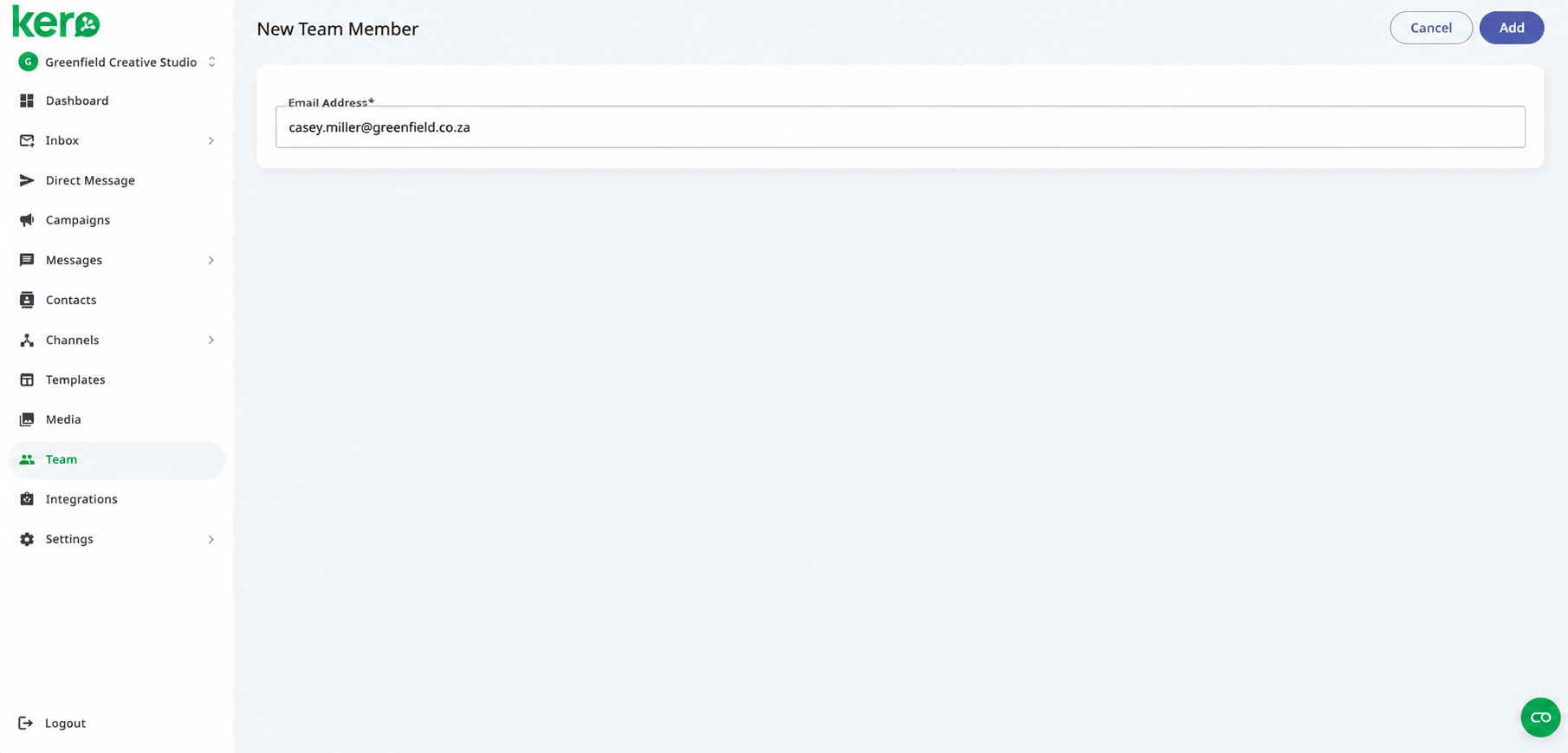
Select + Add member in the top-right corner.The New Team Member screen will open.
3
Enter their email address
Enter the email address of the person you want to invite in the Email Address field.Check that the address is correct before continuing.
4
Send the invitation
Select Add.Kero creates the invitation and sends an invitation email to the recipient.The person will appear in your Team list with the status Invited until they complete the invitation process.
What happens after you send an invitation?
The next steps depend on whether the person is new to Kero or already has a Kero login.- New Kero user
- Existing Kero user
If the person is joining Kero for the first time:
- They receive an invitation email containing a signup link.
- They follow the link to register their Kero login.
- They create their own password and set up multi-factor authentication (MFA).
- Once registration is complete, they can access the Kero account they were invited to.
Manage pending invitations
If a team member hasn’t yet joined your account, you can manage their invitation from the Team page. Locate the person with the status Invited and select the three-dot menu (⋮) at the end of their row. The following options are available: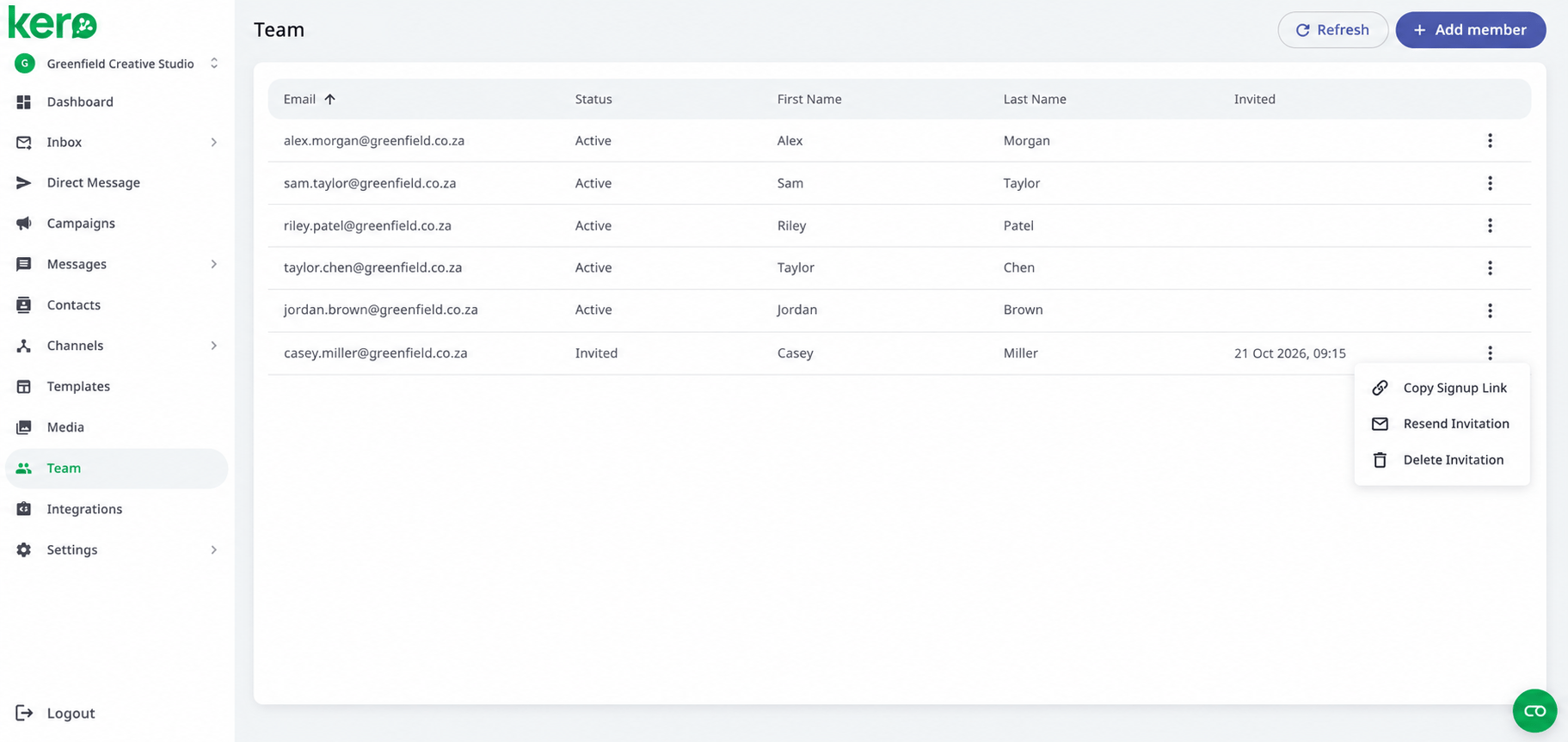
Resend an invitation
If the recipient hasn’t received their invitation:- Open Team.
- Find their email address with the status Invited.
- Select the three-dot menu (⋮).
- Select Resend Invitation.
Copy the signup link
If you need to share the signup link directly:- Open Team.
- Find the pending invitation.
- Select the three-dot menu (⋮).
- Select Copy Signup Link.
- Share the link securely with the intended recipient.
Cancel a pending invitation
If the invitation was sent to the wrong address or is no longer needed:- Open Team.
- Find the pending invitation.
- Select the three-dot menu (⋮).
- Select Delete Invitation.
Remove an existing team member
You can remove a team member who should no longer have access to your Kero account.1
Open Team
Select Team from the left navigation menu.
2
Find the team member
Locate the person you want to remove from the list of active members.
3
Open the member menu
Select the three-dot menu (⋮) at the end of their row.
4
Select Remove Member
Select Remove Member and follow any confirmation prompts displayed by Kero.
Removing someone from your team removes their access to this Kero account. If they have access to other Kero accounts, those accounts remain separate.
Team access and administrator permissions
Inviting someone to your Kero account does not automatically grant them administrator or billing permissions. Kero does not currently provide self-service roles and permissions management. If a team member requires additional administrator access, the account owner must contact Kero Support. A Kero specialist will configure the required permissions in the backend.Billing accessBilling Account is available to the account owner and team members who have been granted administrator access.For more information, see Manage your billing account.