
Who can manage billing?Billing Account is available to the Kero account owner and team members who have been granted administrator access.If another team member needs billing access, the account owner must contact Kero Support to request it. A Kero specialist will configure the required access.Administrator permissions cannot currently be assigned directly within Kero.
Access your billing account
1
Open Account Settings
Sign in to Kero.Select Settings from the left navigation menu.
2
Select Billing Account
Under Account Settings, select Billing Account.Your registered billing information will be displayed.
3
Open the billing portal
Select Go to billing portal.This opens your Stripe billing portal, where you can manage your billing information and payment methods.
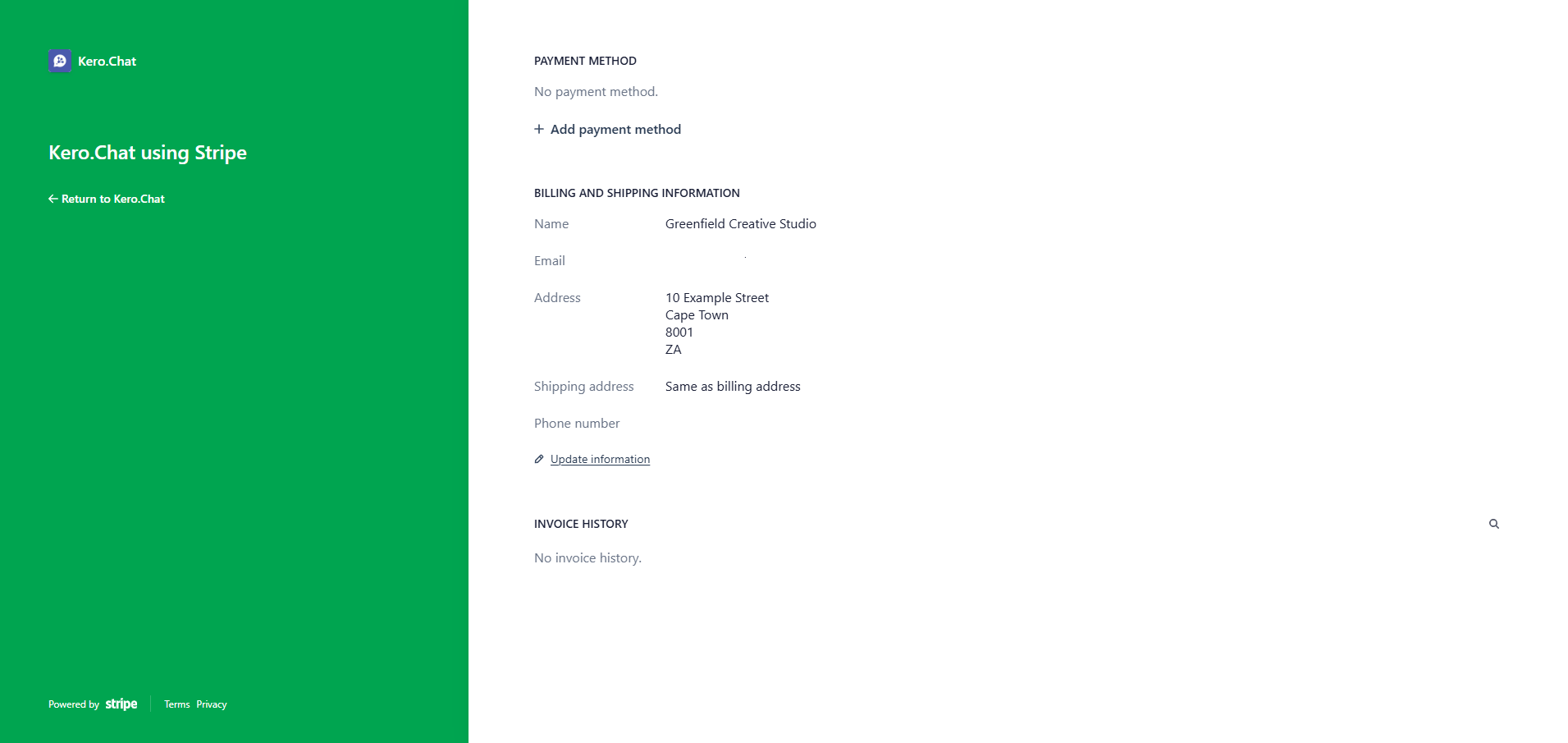
If you haven’t registered your billing account yet, follow our Set up your billing account guide.You don’t need to add a payment method to complete your initial Kero billing registration.
What can you manage in the billing portal?
The Stripe billing portal provides access to the following features:Add a payment method
You can securely add a payment method through the Stripe billing portal.1
Open the billing portal
Navigate to Settings → Billing Account in Kero.Select Go to billing portal.
2
Select Add payment method
Under Payment Method, select + Add payment method.
3
Choose your payment method
Select one of the payment methods offered by Stripe, such as Card or Revolut Pay.If you select Card, enter your:
- Card number
- Expiration date
- Security code (CVC)
- Country
4
Confirm your payment method
Review your details and select Add to submit your payment method.Follow any additional verification instructions displayed by Stripe.
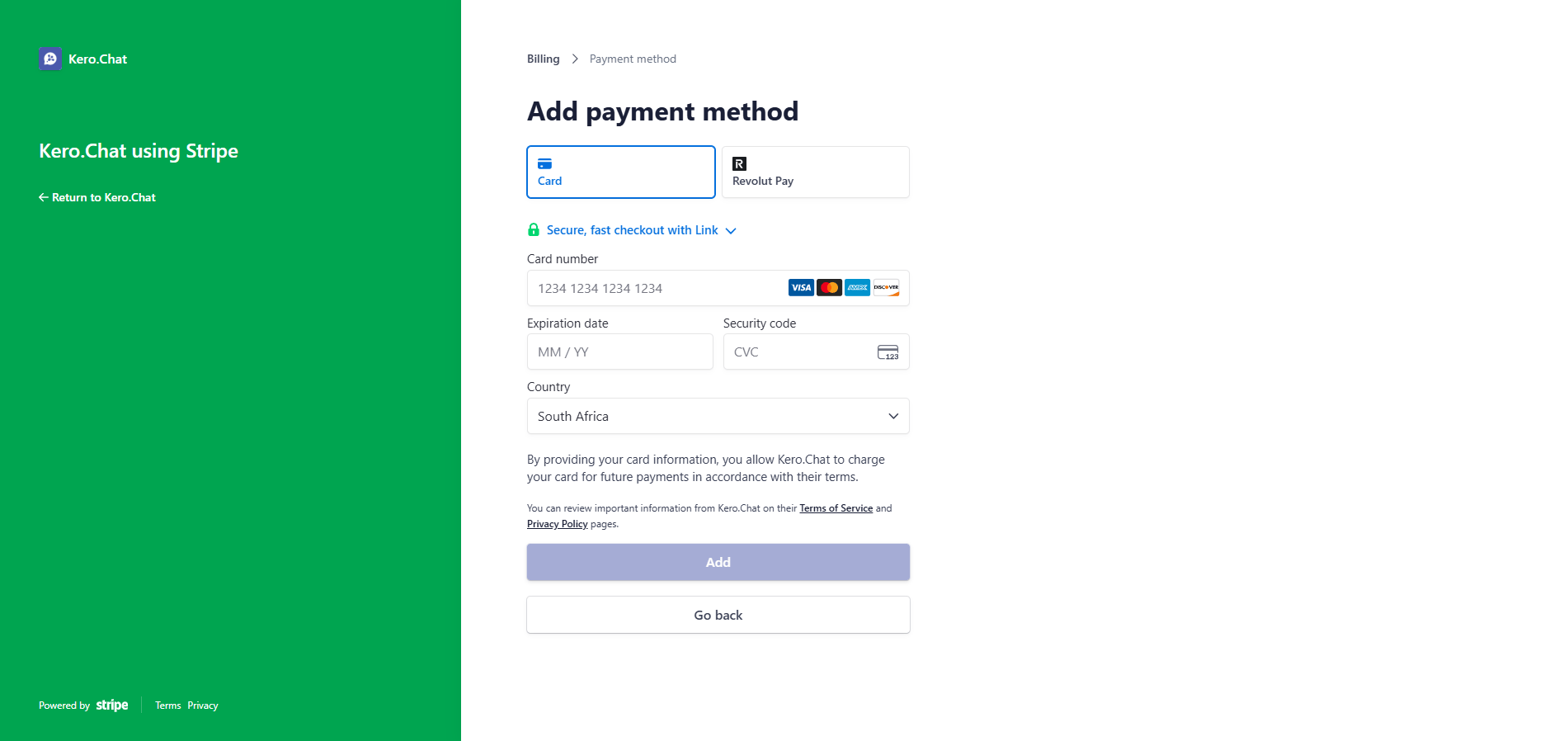
By adding a payment method, you authorise Kero to charge that method for applicable future payments in accordance with its terms.You can review the relevant terms and privacy information in the Stripe billing portal.
Update your billing information
Your billing information is used for invoicing and account administration. The portal displays information such as:- Business name
- Billing email address
- Billing address
- Phone number
- Tax identification number, where applicable
1
Open the Stripe billing portal
Navigate to Settings → Billing Account in Kero and select Go to billing portal.
2
Select Update information
Under Billing and Shipping Information, select Update information.
3
Update your details
Make the necessary changes to your business information.
4
Save your changes
Save your updated information using the option provided by Stripe.
View your invoice history
The Stripe billing portal includes an Invoice History section. When invoices are available, you can access your billing records from this section. If your account hasn’t yet been invoiced, the portal may display No invoice history.Invoice history depends on the billing activity associated with your Kero account.