
Choose how to prepare your message
Direct Message
Send an individual message to a recipient. This is a useful starting point when testing your messaging channel.
Templates
Create and manage reusable messages for individual communication and Campaigns. Templates also support channel fallback configuration where available.
What does your messaging channel require?
Your messaging channel must be configured for the type of message you want to send. Completing Agent setup does not necessarily mean the channel is approved for live customer messaging.
Prepare a Direct Message
Direct Message is useful when you want to communicate with one recipient or test an individual message.1
Open Direct Message
Sign in to Kero and navigate to Direct Message.
2
Select your messaging channel
Choose the configured channel you want to use.Depending on the channel and message type, you may need to select an Agent or an approved template.
3
Prepare your message
Enter your recipient’s mobile number and prepare the message content using the options available for your selected channel.For WhatsApp Business, use an approved WhatsApp template when required.
4
Check your message
Review the recipient, selected channel, message content and any required template variables before sending.
Prepare a reusable Template
Templates are useful when you want to reuse message content, personalise messages or configure fallback between supported messaging channels.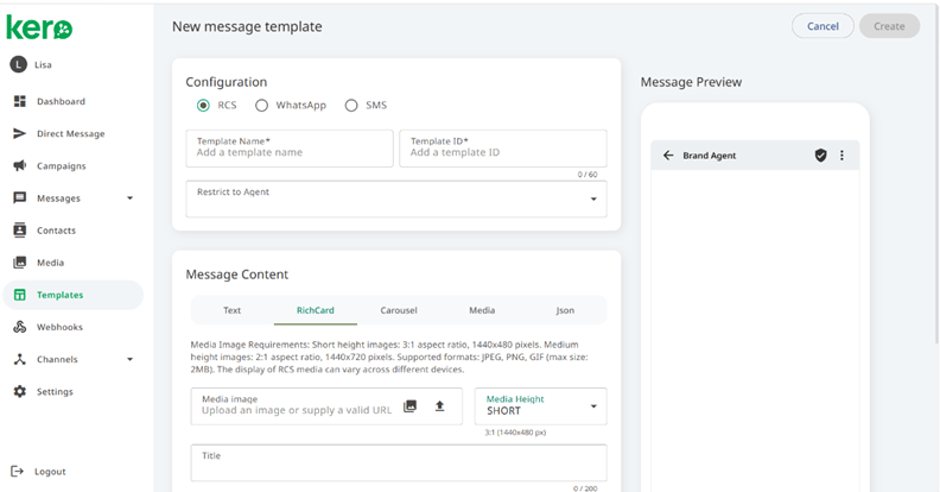
- SMS: Text-based messages.
- WhatsApp Business: Messages based on approved WhatsApp templates, with variables where supported.
- RCS for Business: Rich messages, including supported cards, carousels and interactive elements.
Channel fallback is configured in Kero Templates.If you want Kero to use an alternative channel when the primary channel cannot be used, configure the supported fallback options when creating your Kero Template.Fallback is optional and requires the relevant messaging channels to be configured.