
Before you begin
Make sure you have:- Contacts — Recipients with valid mobile numbers stored in your Kero account.
- A configured Agent — An Agent for the messaging channel you want to use.
- A message template — A template configured for the Agent you intend to send from.
- Permission to message recipients — The appropriate consent or other lawful basis for your intended communication.
Contacts and segments belong to the Kero account in which they were created.If you manage multiple interconnected Kero accounts, make sure you are working in the correct account before preparing your campaign.
Option 1: Start a campaign with selected contacts
Use this option when you want to send a campaign to specific recipients without creating a segment.1
Open Contacts
From the Kero navigation menu, select Contacts.
2
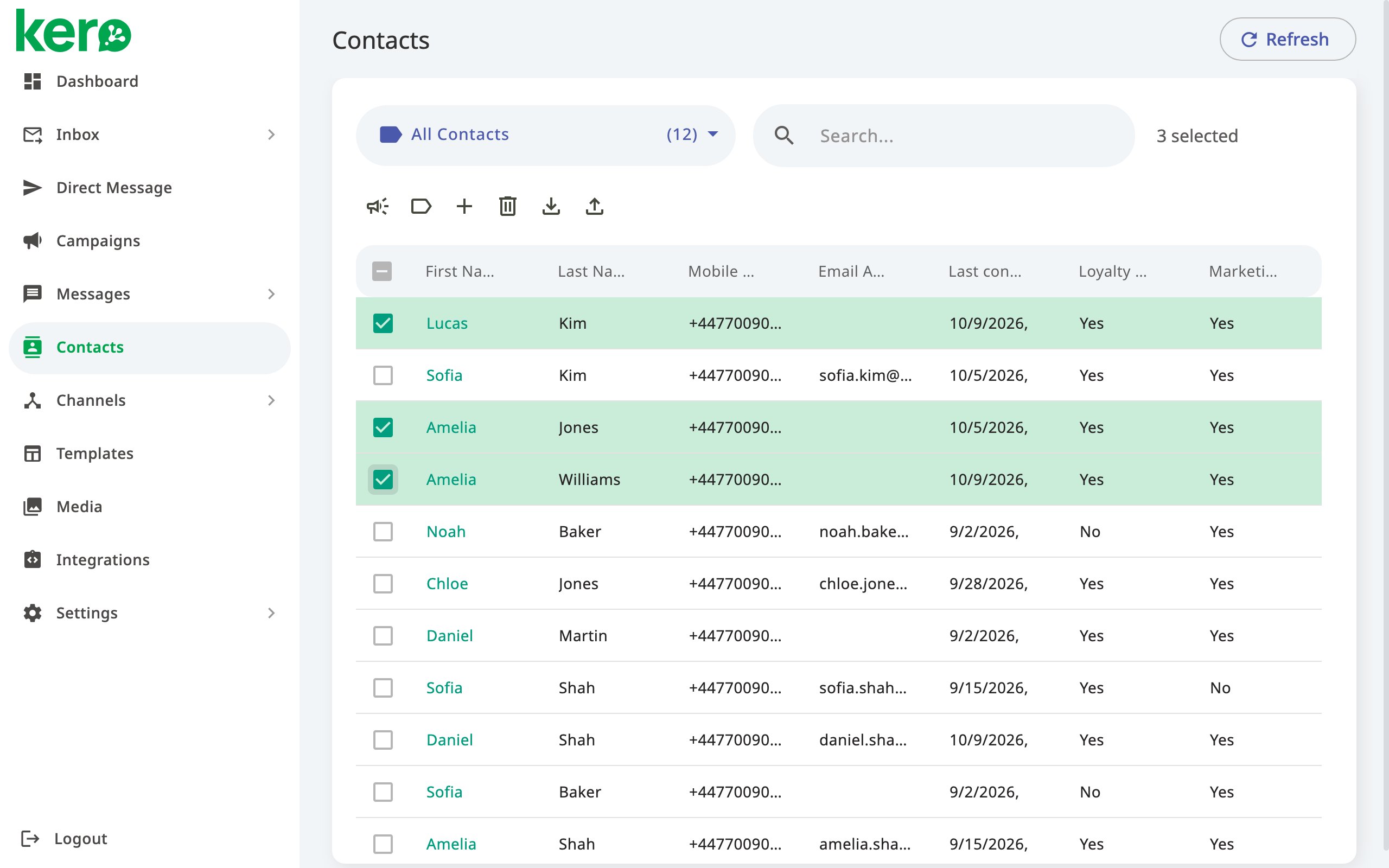
Select your recipients
Open All Contacts and select the checkbox next to each contact you want to include.Kero displays the number of selected contacts next to Search.
3
Start the campaign
Click the Campaign icon in the toolbar above the Contacts list.Kero opens a new campaign with your selected contacts as recipients.
4
Configure your campaign
Complete the campaign setup by selecting the relevant Agent and message template.Continue through the parameter assignment and message review steps.
Option 2: Send a campaign to a segment
Use this option when you have already organised contacts into a segment.1
Open Campaigns
From the Kero navigation menu, select Campaigns.
2
Start a new campaign
Click Start Campaign.
3
Enter your campaign details
Enter a descriptive Campaign name.Select the Channel Agent and the Template you want to use.The available templates depend on the Agent you select.
4
Choose Contacts as your recipient source
Under the recipient selection options, choose Contacts.
5
Select your segment
Use Selected Segment to choose the segment containing your intended recipients.
6
Continue
Click Next to proceed to parameter assignment.
Segments are manually managed. They do not automatically update when contact information changes.Before sending a campaign, make sure the selected segment contains the intended recipients.
Alternatively, start from the Contacts page
You can also start a campaign directly from a segment:- Navigate to Contacts.
- Select the segment from the segment dropdown.
- Select the contacts you want to include, or use the header checkbox to select all contacts in the displayed list.
- Click the Campaign icon in the toolbar.
Personalise messages using contact fields
Contact information can be used to personalise the messages sent through a campaign. For example, you might want to address recipients by their first name or include a customer reference. A message template might contain a parameter such as:{{first_name}}
When preparing the campaign, you map that parameter to the contact field containing each recipient’s first name.
Kero uses the mapped information to populate the parameter for each recipient.
You can also use custom contact fields, such as:
- Customer Reference
- Membership Type
- Appointment Date
- School Campus
Creating a custom contact field does not automatically personalise your messages.The corresponding template parameter must be configured and mapped to the correct contact field during campaign setup.
Assign contact fields to template parameters
After selecting your recipients and campaign template, Kero displays the Assign Parameters step.1
Review the available contact information
Kero displays the contact data available for your selected recipients.
2
Map the mobile number
Make sure the column containing recipient mobile numbers is mapped to Mobile Number.
3
Map your template parameters
Use the dropdown above each relevant column to select the corresponding template parameter.For example:
- First Name →
first_name - Customer Reference →
customer_reference
4
Exclude unnecessary columns
If a column is not needed for the campaign, select [none] for that column.
5
Continue
Check that all required parameters are mapped correctly, then click Next.
Review recipients and personalised messages
Before submitting your campaign, Kero displays a summary of the messages that will be sent.1
Review the campaign summary
Check the recipients and message information displayed under Campaign Summary.
2
Preview an individual message
Select a recipient from the list to view their personalised message under Message Preview.
3
Check the personalised information
Confirm that names, references and other mapped values appear correctly.Also check that the intended message template and Agent have been selected.
4
Submit or schedule
Once you are satisfied with the campaign, click Submit to send it or Schedule if you configured a future sending date and time.
Good practices for selecting campaign recipients
- Review your segments. Check segment membership before preparing recurring campaigns.
- Keep contact information current. Correct outdated mobile numbers and other details.
- Check parameter mappings. Make sure personalised information is drawn from the correct fields.
- Preview individual messages. Verify that the final message contains the intended information.
- Respect communication preferences. Send messages only where you have the appropriate consent or other lawful basis.
- Check the selected account. Make sure the recipients belong to the Kero account from which you intend to send.