
Understanding custom contact fields
Every contact in Kero has standard fields, including:- First Name
- Last Name
- Mobile Number
- Email Address
Custom fields are configured at account level and can be used across the contacts in that Kero account.
Custom contact fields are separate from segments.Fields store information about a contact, while segments group contacts together for messaging.Updating a custom field does not automatically add or remove a contact from a segment.
Create a custom contact field
You can create custom fields before adding contacts or importing contact information.1
Open Contact Columns
From the Kero navigation menu, go to Settings → Contact Columns.
2
Add a new field
Use the available option to add a contact column.
3
Enter the field name
Give the field a clear, descriptive name.For example:
- Customer Reference
- School Campus
- Membership Number
- Appointment Date
4
Save the field
Save your new contact column.The field becomes available for storing additional information in your contact records.
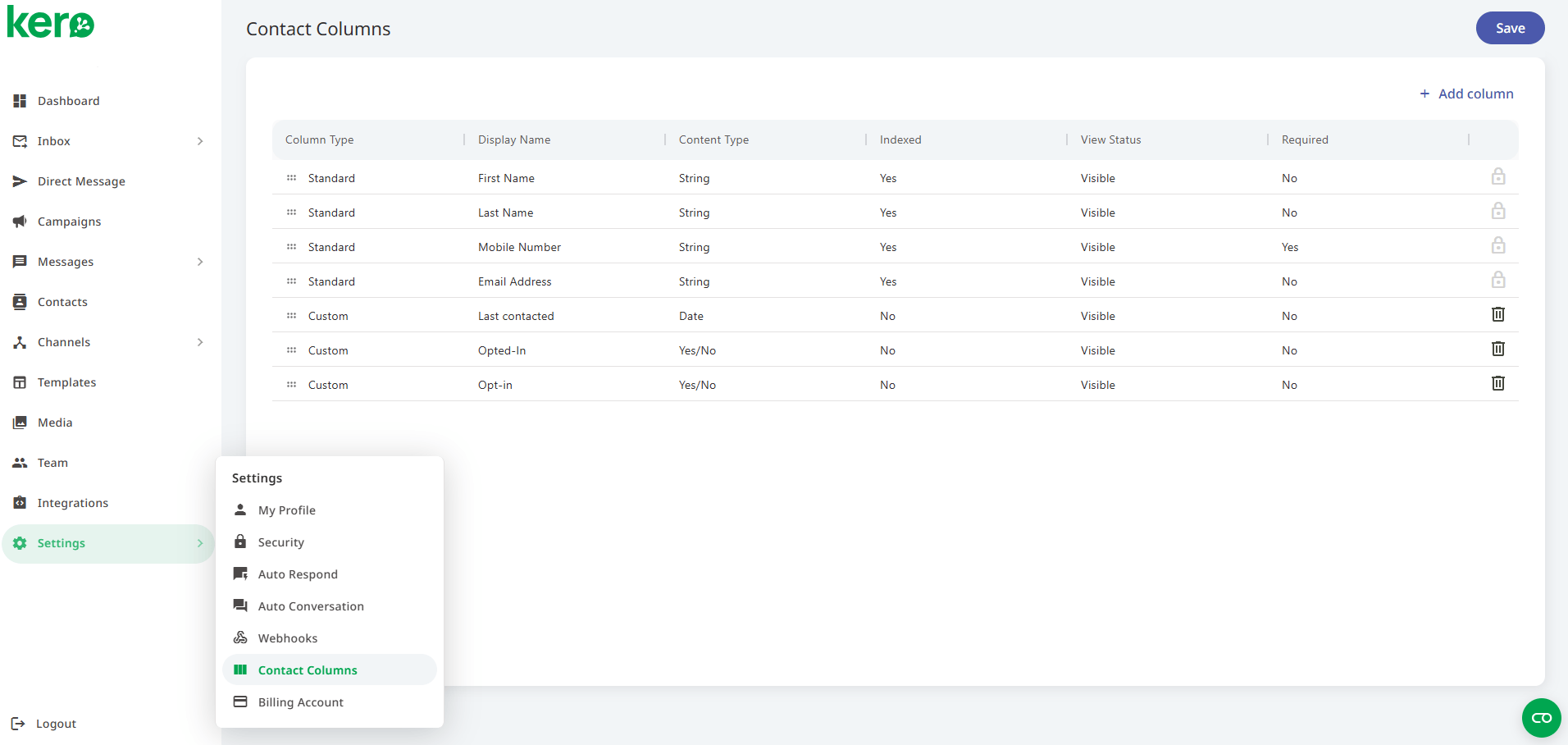
Rename a custom contact field
If a field name is unclear or your business terminology changes, you can rename an existing custom field.1
Open Contact Columns
Navigate to Settings → Contact Columns.
2
Find the field
Locate the custom contact field you want to rename.
3
Edit the field name
Use the field’s edit control to change its name.
4
Save your changes
Save the updated field name.
If you use this field when preparing campaigns or mapping message parameters, review those mappings after renaming it to make sure they still reference the intended contact information.
Delete a custom contact field
You can delete individual custom fields that are no longer needed.1
Open Contact Columns
Navigate to Settings → Contact Columns.
2
Select the field
Find the custom contact field you want to remove.
3
Delete the field
Use the delete control associated with that field.
4
Confirm the action
Review any confirmation message and confirm the deletion if you want to proceed.
Manage fields created during contact imports
When importing contacts from Excel or CSV files, Kero allows you to map spreadsheet columns to existing contact fields. If a spreadsheet contains a column that does not match an existing Kero field, you can create a new custom field during the import. For example, a spreadsheet column namedCustomer Reference can be mapped to <create> to create a corresponding custom contact field.
Fields created this way are managed in the same place as fields you create manually.
You can:
- View them under Settings → Contact Columns.
- Rename them if you want to use a different field name.
- Delete them if they are no longer required.
View and update custom field values
Once a custom field has been created, you can enter information for individual contacts.1
Open Contacts
From the Kero navigation menu, select Contacts.
2
Select a contact
Find and open the contact whose information you want to update.
3
Update the custom field
Locate the custom field in the contact details panel and enter or change its value.
4
Save the contact
Click Update to save the changes.
Use custom fields to personalise messages
Custom fields can provide recipient-specific information when sending personalised messages. For example, a business might store a customer’s membership type or appointment date and use that information in a message template. When preparing a campaign, you can map template parameters to the corresponding contact fields.Creating a custom field does not automatically insert its value into a message.The relevant message parameters must be configured and mapped when preparing your messaging workflow.
Good practices for managing custom fields
- Use meaningful names. Make it clear what information each field contains.
- Avoid duplicate fields. Check whether a suitable field already exists before creating another.
- Keep values consistent. Use consistent formats for dates, references and other information.
- Review fields before importing. Make sure spreadsheet columns are mapped correctly.
- Remove unused fields carefully. Check whether the information is still needed before deleting a field.
- Limit unnecessary personal information. Store only information relevant to your business and messaging requirements.