
Segments are manually managed. They do not automatically update when contact information changes.You must add or remove contacts yourself to keep segment membership up to date.
Before you begin
Make sure you are working in the correct Kero account. Segments belong to the account in which they are created and are not automatically shared between interconnected Kero accounts. You can create a segment before adding contacts to it, or organise existing contacts into segments.Create a segment
1
Open Contacts
From the Kero navigation menu, select Contacts.
2
Create a new segment
Open the segment dropdown at the top of the Contacts list and select the option to create a new segment.
3
Name your segment
Enter a descriptive name that makes the segment easy to identify.For example:
- Western Cape Customers
- Event Registrations
- Newsletter Subscribers
4
Save the segment
Confirm the new segment.Your segment is now available for organising contacts and selecting campaign recipients.
Add contacts to a segment
You can add existing contacts to a segment directly from your Contacts list.1
Open All Contacts
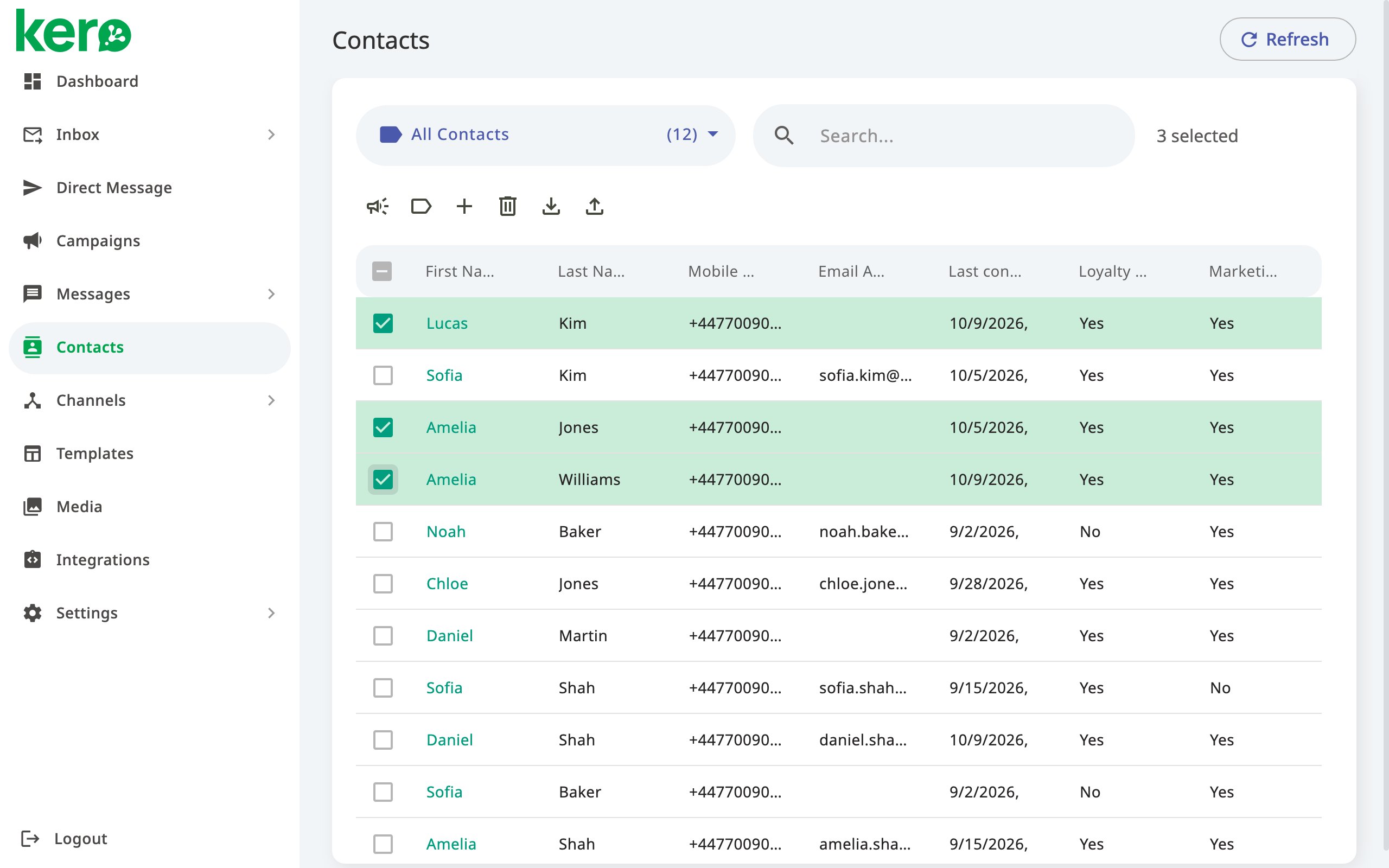
Navigate to Contacts and select All Contacts from the segment dropdown.
2
Select the contacts
Select the checkbox next to each contact you want to add.You can select multiple contacts at once.
3
Choose the Segment action
Click the Segment icon in the toolbar above the Contacts list.
4
Select the destination segment
Choose the segment to which you want to add the selected contacts.If the segment does not yet exist, use the available option to create one.
5
Confirm the selection
Confirm the action to add the selected contacts to the segment.
Adding a contact to a segment does not remove them from other segments.A contact can belong to multiple segments at the same time.
View contacts in a segment
Once you’ve created a segment and added contacts, you can view its membership.1
Open Contacts
Navigate to Contacts.
2
Select a segment
Open the segment dropdown and choose the segment you want to view.
3
Review the contacts
The Contacts list displays the contacts belonging to the selected segment.You can search the list or open an individual contact to review their details.
Remove a contact from a segment
If a contact no longer belongs in a particular group, you can remove their segment membership without deleting their contact record.1
Open the contact
Navigate to Contacts and select the contact you want to update.
2
Find Segment Membership
In the contact details panel, locate Segment Membership.
3
Remove the segment
Remove the relevant segment from the contact’s membership selection.Leave any other segments selected if the contact should remain a member of those groups.
4
Save the changes
Click Update to save the revised segment membership.
Removing a contact from a segment does not delete the contact from Kero.The contact remains available under All Contacts and in any other segments to which they belong.
Manage segment membership for an individual contact
You can also add a contact to one or more segments directly from their contact record.1
Open the contact
Navigate to Contacts and select the contact you want to update.
2
Find Segment Membership
In the contact details panel, locate Segment Membership.
3
Add the segment
Select the segment or segments you want the contact to belong to.
4
Save the changes
Click Update to save the contact’s revised segment membership.
Delete a segment
If you no longer need a segment, you can delete it without deleting the contacts it contains.1
Open Contacts
Navigate to Contacts.
2
Open the segment dropdown
Click the segment dropdown at the top of the Contacts list.
3
Delete the segment
Locate the segment you want to delete and click the bin icon beside its name.
4
Confirm the deletion
Review the confirmation message and confirm that you want to delete the segment.
Delete contacts from Kero
Deleting a contact is different from removing a contact from a segment or deleting a segment. If you need to permanently remove contact records, you can do so from All Contacts.1
Open All Contacts
Navigate to Contacts and select All Contacts from the segment dropdown.
2
Select the contacts
Select the checkbox next to each contact you want to delete.
3
Delete the selected contacts
Click the bin icon in the toolbar above the Contacts list.
4
Confirm the deletion
Review the confirmation message and confirm that you want to delete the selected contacts.
Use segments in campaigns
Segments make it easier to select groups of recipients when creating campaigns. When preparing a campaign, you can select an existing segment instead of choosing each contact individually. This is particularly useful for recurring communications, such as customer updates, appointment reminders or event announcements.Segment membership is not based on automatic rules. If your recipient group changes, update the segment before using it for your next campaign.
Good practices for managing segments
- Use descriptive names. Make it easy to identify the purpose of each segment.
- Review membership regularly. Add or remove contacts when your recipient groups change.
- Avoid unnecessary duplication. Reuse existing segments when they represent the same group.
- Check recipients before sending. Make sure your selected segment contains the intended recipients.
- Keep contact records separate from segment membership. Remove contacts from a segment when you only want to change their grouping, rather than deleting their records.