
Before you begin
Prepare your spreadsheet before starting the import.- One contact per row — Each row should contain the details of one recipient.
- Mobile numbers — Include a mobile number for each contact, preferably in international format with the country code.
- Column headings — Use headings such as
First Name,Last Name,Mobile NumberandEmail Address. - Additional information — Include any other fields you want to store, such as
Customer ReferenceorAppointment Date.
Make sure you are working in the correct Kero account before importing. Contacts are stored in the account into which they are imported.
Step 1: Select your file
1
Open Contacts
From the Kero navigation menu, select Contacts.
2
Start the import
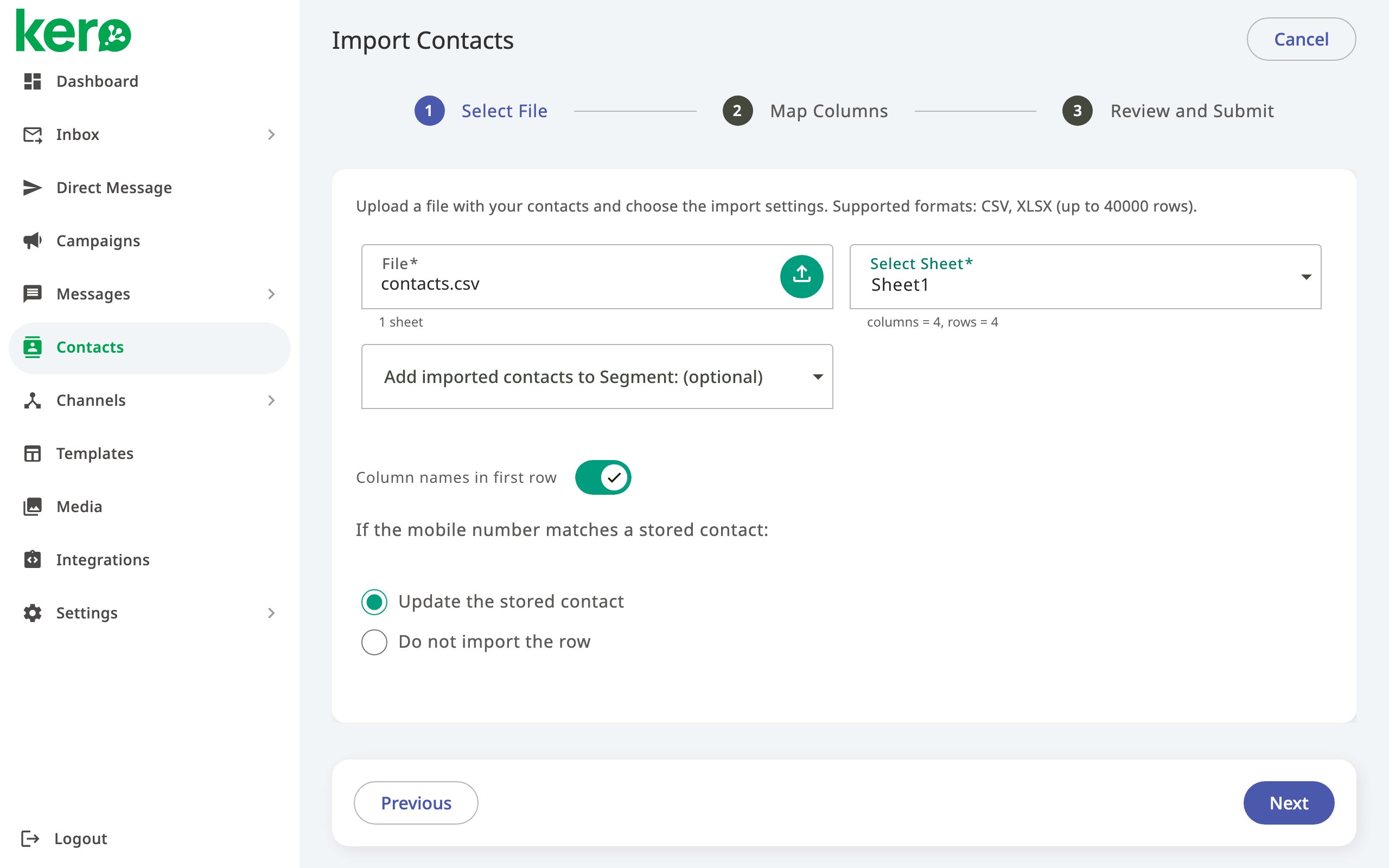
Click the Upload button above the Contacts list.The contact import wizard opens.
3
Choose your file
Under File, click the upload icon and select your Excel or CSV file.If your Excel file contains multiple worksheets, use Select Sheet to choose the worksheet containing the contacts you want to import.
4
Choose a segment (optional)
Under Add imported contacts to Segment, select the segment to which you want to add the imported contacts.You can also organise contacts into segments after importing.
5
Confirm your column headings
If the first row of your spreadsheet contains column names, leave Column names in first row enabled.If your file does not contain column headings, turn this option off.
6
Choose how to handle existing contacts
Kero identifies existing contacts using their mobile numbers.Choose one of the available options:
- Update — Update the existing contact using information from the imported file.
- Do not import — Skip rows containing mobile numbers that already exist in your contacts.
7
Continue
Click Next to proceed to column mapping.
Step 2: Map your spreadsheet columns
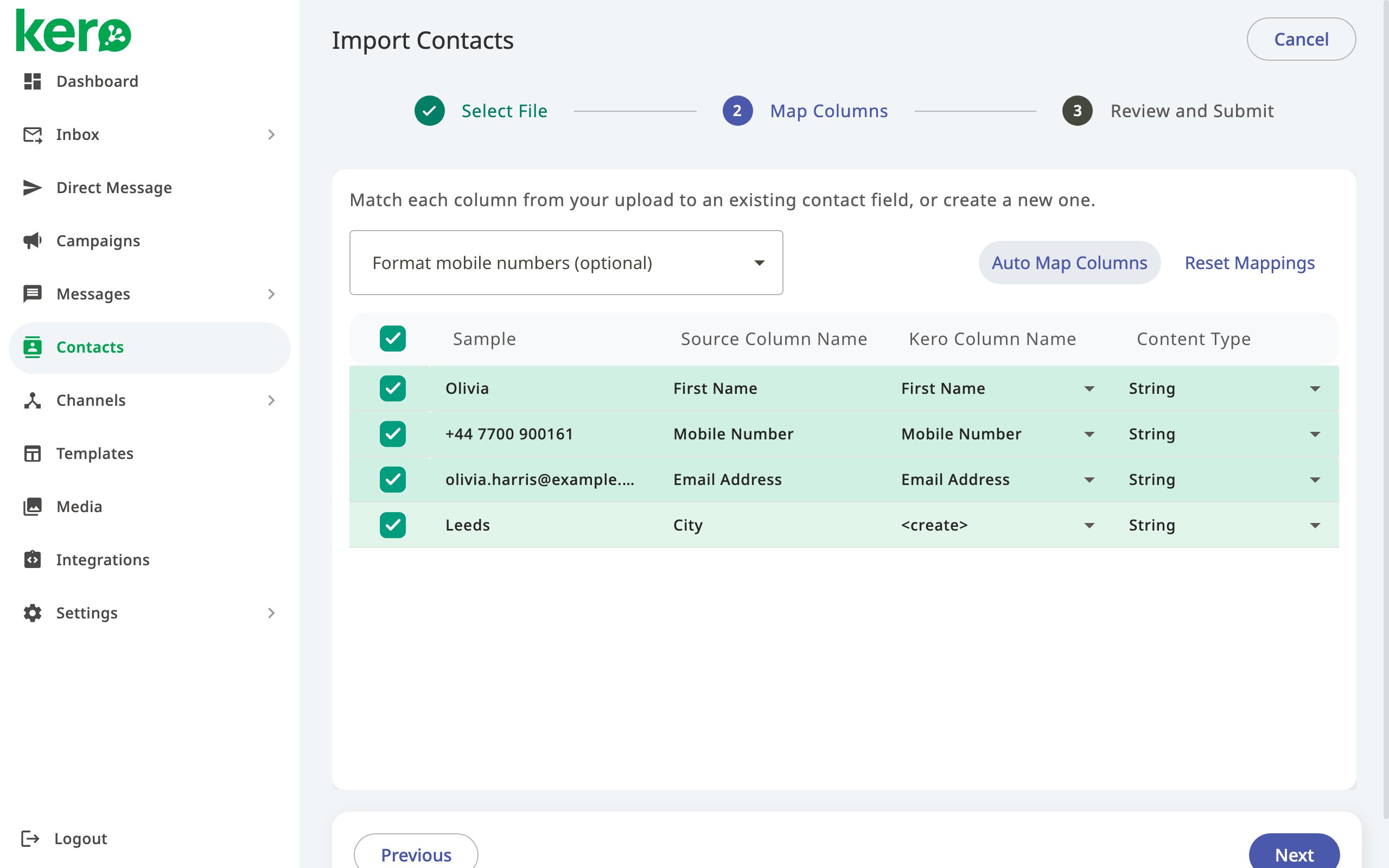
Kero needs to know which contact field should receive the information from each column in your spreadsheet. When you reach Map Columns, Kero displays the columns from your file alongside the corresponding Kero Column Name. Columns with names matching existing contact fields are mapped automatically.1
Review the column mappings
Check that each spreadsheet column is mapped to the correct Kero contact field.For example:
First Name→ First NameLast Name→ Last NameMobile Number→ Mobile NumberEmail Address→ Email Address
2
Correct any mappings
If a column is mapped incorrectly, click its Kero Column Name and select the appropriate contact field.You can clear the checkbox next to a column if you do not want to import its information.
3
Create additional contact fields (optional)
If your spreadsheet contains information that does not match an existing Kero contact field, the mapping may show
<create>.This means Kero will create a new custom contact field for that column during the import.For example, importing a column named Customer Reference can create a custom field with that name.Custom fields created during an import become available for contacts in your Kero account.You can rename or delete these fields later under Settings → Contact Columns.
4
Format mobile numbers (if needed)
If your spreadsheet contains mobile numbers without international country codes, use Format mobile numbers to select the appropriate country.Kero uses this selection to add the country code to numbers that need it.
5
Continue
Once your columns are mapped correctly, click Next.
Reset or automatically map columns
If you need to start your mappings again, click Reset Mappings. You can then:- Map each column manually.
- Click Auto Map Columns to match columns with existing Kero fields.
- Click Auto Map Columns a second time to map remaining columns as new custom fields.
Step 3: Review and submit your import
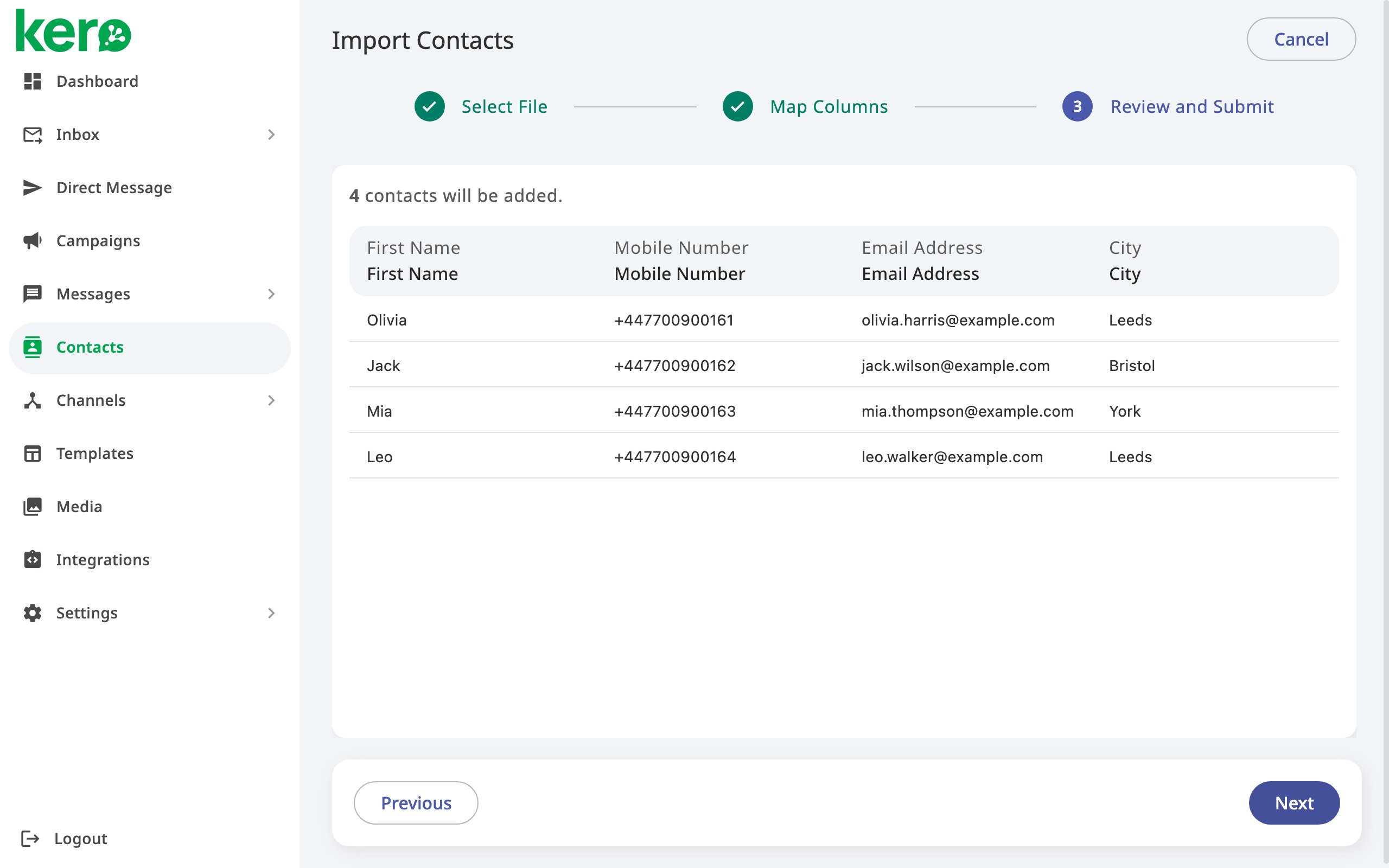
Before importing your contacts, Kero displays a preview of the contact information.1
Review the contacts
Check the displayed information to confirm that:
- Names appear in the correct fields.
- Mobile numbers have been formatted correctly.
- Additional information is mapped to the intended fields.
- The records are ready to import.
2
Start the import
Click Next to submit the contacts for import.
3
Review the import results
Once processing is complete, Kero displays a summary showing how many contacts were:
- Added — New contacts successfully created.
- Updated — Existing contacts updated from the file.
- Skipped — Rows not imported, such as existing contacts excluded by your duplicate-handling selection.
- Failed — Rows that could not be imported.
4
Finish
Click Finish to return to your Contacts list.
Troubleshooting imports
The Next button is unavailable during column mapping
Kero requires a column containing valid mobile numbers mapped to Mobile Number. Check that:- Your spreadsheet contains mobile numbers.
- The correct spreadsheet column is mapped to Mobile Number.
- Mobile numbers include the international country code, or you have selected the appropriate country under Format mobile numbers.
Some contacts were skipped
If you selected Do not import for existing contacts, Kero skips rows with mobile numbers already present in your Contacts list. If you intended to update those contacts, repeat the import and select Update instead.Some contacts failed to import
Review the source spreadsheet for missing or incorrectly formatted mobile numbers and check the column mappings before trying again.An unexpected custom field was created
This can happen when a spreadsheet column is mapped to<create> rather than an existing Kero contact field.
You can manage custom fields under Settings → Contact Columns.
After importing
Your imported contacts are available in the Contacts list. You can now:- Search for and update individual contacts.
- Organise contacts into segments.
- Use contact information to personalise messages.
- Select contacts or segments as recipients for campaigns.