
Before you begin
Make sure you are signed in to the correct Kero account. If you have access to multiple interconnected accounts, check the account name in the top-left corner before adding or updating contacts. Have the recipient’s contact details available, particularly their mobile number.Contacts belong to the Kero account in which they are created. Adding a contact to one account does not automatically make that contact available in your other Kero accounts.
Create a contact manually
Use this option when you want to add an individual recipient rather than import a spreadsheet of contacts.1
Open Contacts
From the Kero navigation menu, select Contacts.The Contacts page displays the contacts associated with your current account.
2
Create a new contact
Click the + button above the Contacts list to open the contact form.
3
Enter the contact details
Complete the relevant fields:
- First Name — The recipient’s first name.
- Last Name — The recipient’s surname.
- Mobile Number — The recipient’s mobile number (required).
- Email Address — The recipient’s email address, if available.
- Custom fields — Any additional contact fields configured for your account.
+27712345678.Mobile Number is required when creating a contact. The remaining contact details can be completed according to the information you have available.
4
Assign segment membership (optional)
If you want to add the contact to an existing segment, use Segment Membership to select the relevant segment or segments.A contact can belong to more than one segment.You can also organise contacts into segments later.
5
Create the contact
Review the information and click Create.Your new contact is added to the Contacts list and is available for use in supported messaging workflows.
Find an existing contact
As your contact list grows, you can use the Search function to find individual recipients.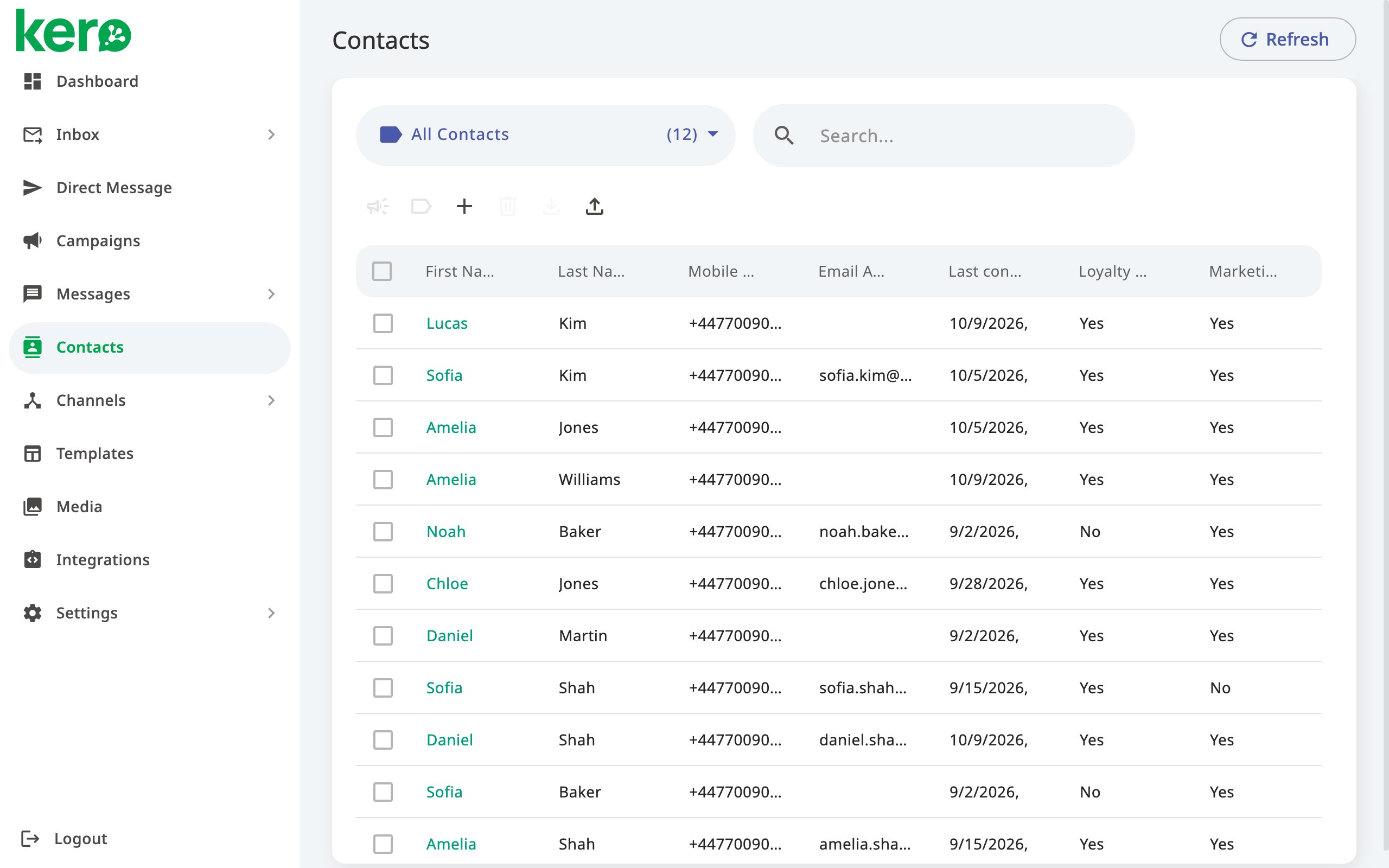
1
Open your Contacts list
Navigate to Contacts.The list displays contact information such as names, mobile numbers, email addresses and any configured custom fields.
2
Search for a contact
Enter part of the recipient’s name, mobile number or email address in Search.Kero displays contacts matching your search.
3
Open the contact
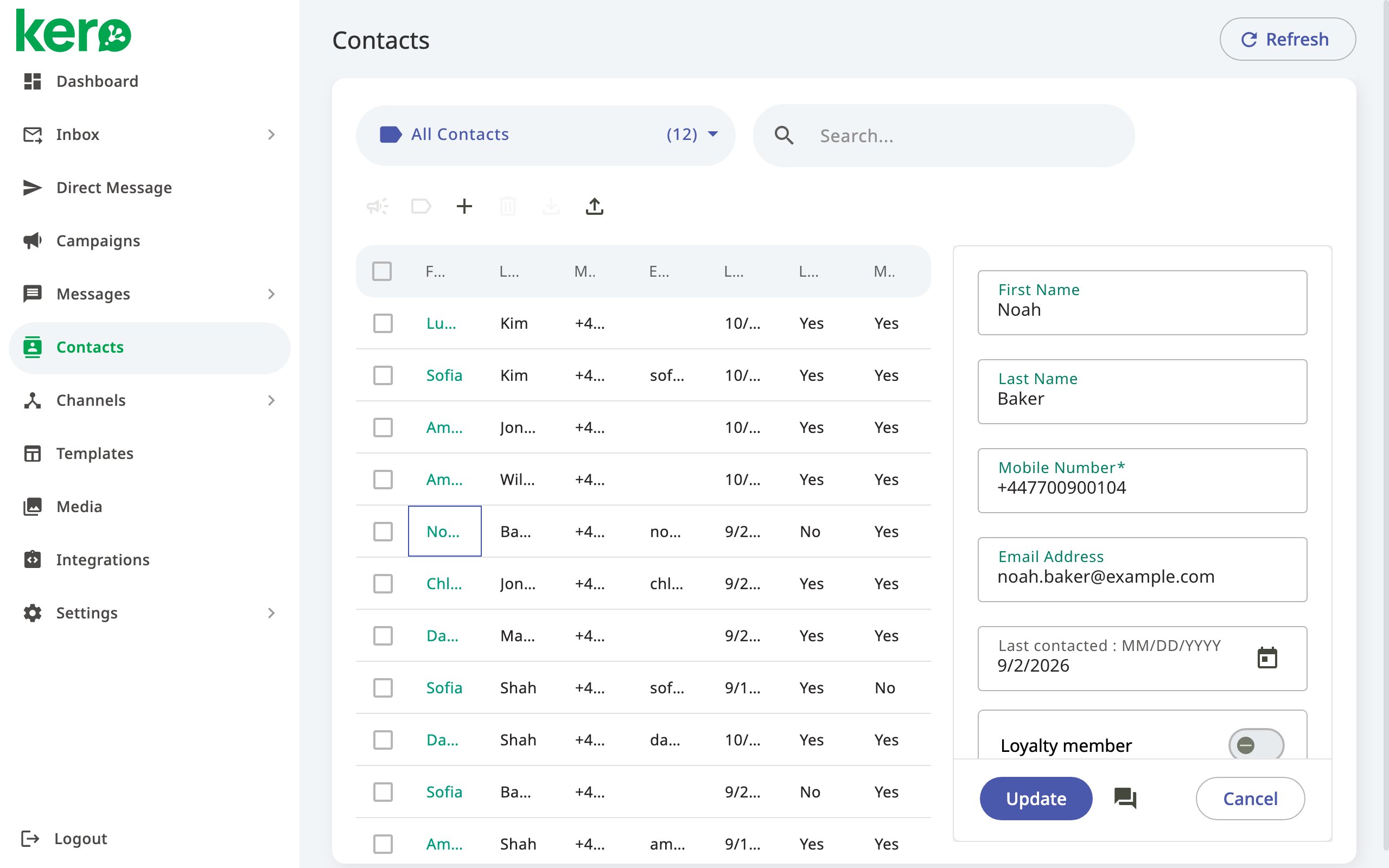
Click the contact in the list to open their details.The contact details panel appears on the right-hand side of the page.
View and update contact information
Contact details may change over time. Keeping records up to date helps ensure that your messages reach the correct recipients and contain accurate information.1
Select the contact
Navigate to Contacts and click the contact you want to update.Their details open in a panel on the right.
2
Review the contact details
Check the existing information, including names, mobile number, email address, custom fields and segment membership.
3
Update the information
Change the relevant fields.If you need to store additional information that is not available in the standard contact fields, you can configure custom fields under Settings → Contact Columns.
4
Save your changes
Click Update to save the changes.To close the contact details without saving, click Cancel.
Select multiple contacts
You can select one or more contacts when you want to perform an action on a group of recipients.- Navigate to Contacts.
- Select the checkbox next to each contact you want to include.
- To select all contacts in the displayed list, use the checkbox in the column header.
- Kero displays the number of selected contacts next to Search.
Actions that require selected contacts become available once you have selected one or more contacts.
Export selected contacts
You can download contact information as a CSV file, which can be opened in Excel or another spreadsheet application.1
Select your contacts
Navigate to Contacts and select the checkboxes next to the contacts you want to export.
2
Download the contacts
Click the Download button above the Contacts list.Kero downloads the selected contacts as a CSV file.
Other ways to use your contacts
Once your contacts are available in Kero, you can:- Start a conversation — Open an individual conversation directly from a contact’s details panel.
- Create campaigns — Select contacts as recipients when preparing a messaging campaign.
- Organise contacts into segments — Group contacts for targeted messaging without having to select recipients individually each time.
Managing contact information responsibly
Keep your contact records accurate and up to date. When managing contacts:- Correct outdated names, mobile numbers and other details.
- Avoid unnecessary duplicate records.
- Use custom fields consistently.
- Make sure you have the appropriate consent or other lawful basis for communicating with recipients.
- Check that you are working in the correct Kero account.