
Understand the difference
Delete selected contacts
You can delete one or more contact records from the All Contacts list.1
Open All Contacts
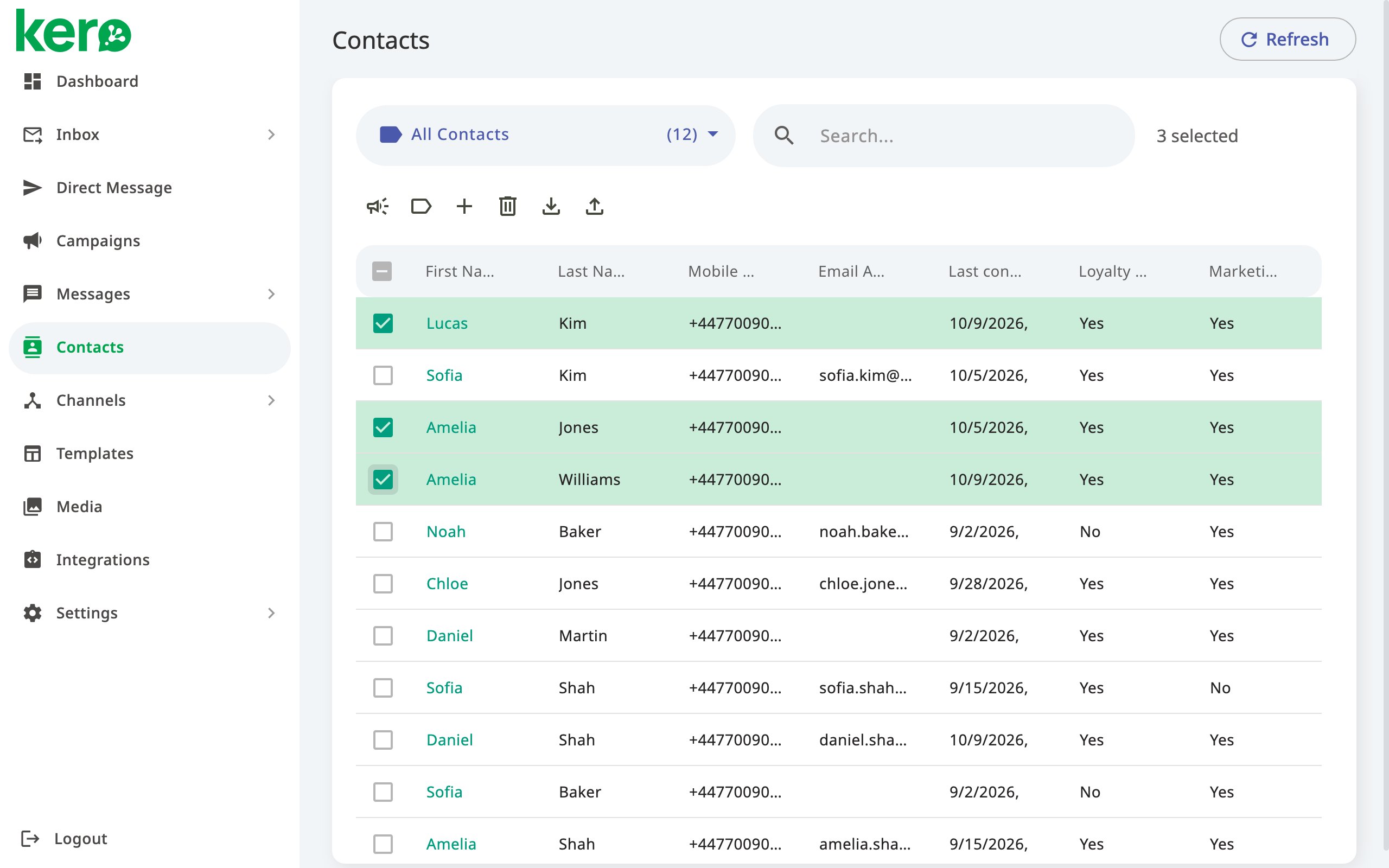
From the Kero navigation menu, select Contacts.Use the segment dropdown to select All Contacts.
2
Select the contacts
Select the checkbox next to each contact you want to delete.You can select multiple contacts at once.Review your selection carefully before continuing.
3
Click Delete
Click the bin icon in the toolbar above the Contacts list.
4
Confirm the deletion
Review the confirmation message.If you are certain that you want to delete the selected contacts, confirm the action.
Remove a contact from a segment without deleting it
If a contact should no longer belong to a particular segment, you do not need to delete the contact. Instead, update its segment membership.1
Open the contact
Navigate to Contacts and select the contact you want to update.
2
Find Segment Membership
In the contact details panel, locate Segment Membership.
3
Remove the segment
Deselect the segment from which you want to remove the contact.Leave any other segments selected if the contact should remain in those groups.
4
Save your changes
Click Update to save the changes.
The contact remains available under All Contacts and in any other segments to which they belong.Removing a contact from a segment does not delete the contact record.
Delete a segment without deleting its contacts
If you no longer need a segment, you can delete it without removing its contacts from Kero.1
Open Contacts
From the Kero navigation menu, select Contacts.
2
Open the segment dropdown
Open the segment dropdown at the top of the Contacts list.
3
Delete the segment
Locate the segment you want to remove.Click the bin icon beside the segment name.
4
Confirm the deletion
Review the confirmation message and confirm the deletion.
Deleting a segment does not delete its contacts.The contacts remain under All Contacts and in any other segments to which they belong.
Reset all contacts
The Reset Contacts function allows you to clear all contact records from your Kero account. Unlike deleting selected contacts, this action removes the entire contact list. Resetting contacts:- Deletes all contact records in the selected account.
- Preserves your segments, although they will no longer contain the deleted contacts.
- Preserves your custom contact fields, allowing you to reuse them when creating or importing new contacts.
Before resetting contacts
We recommend completing the following checks:- Confirm the account. Make sure you are working in the correct Kero account, particularly if you manage multiple interconnected accounts.
- Review your contact information. Check whether any contact records are still required.
- Export important contacts. Download contact information you may need to retain.
- Consider upcoming campaigns. Check whether any planned communications depend on the contacts you intend to remove.
- Confirm that a full reset is necessary. If you only need to remove specific records, use the individual contact deletion function instead.
Reset your contacts
1
Open All Contacts
From the Kero navigation menu, select Contacts.Use the segment dropdown to select All Contacts.
2
Delete all contacts
Select and delete all contact records from your Contacts list.
3
Confirm the reset
On the Contacts page, select the checkbox confirming that you want to reset your contacts.
4
Complete the reset
Confirm the action to clear all contact records from your Kero account.
Resetting contacts does not delete your segments or custom contact fields.You can reuse these when creating or importing new contacts.
After deleting or resetting contacts
After deleting selected contacts, review All Contacts to confirm that the intended records have been removed. After resetting all contacts:- Your Contacts list will be empty.
- Your existing segments will remain available, but without the deleted contacts.
- Your custom contact fields will remain available.
- You can create new contacts or import contacts from a spreadsheet.
Good practices for managing contact data
- Delete only what is necessary. Use individual contact deletion when you do not need to remove the entire contact list.
- Use segment membership for grouping changes. Removing a contact from a segment is different from deleting its record.
- Check your account selection. Data management actions apply to the selected Kero account.
- Export important information. Keep a copy of contact data you may need before performing destructive actions.
- Review campaign dependencies. Consider how deleting contacts could affect upcoming communications.
- Handle personal information responsibly. Follow your organisation’s data retention requirements and applicable privacy legislation.