
Open customer interactions
- Log in to your Kero account.
- From the left navigation menu, select Messages.
- Click Interactions.
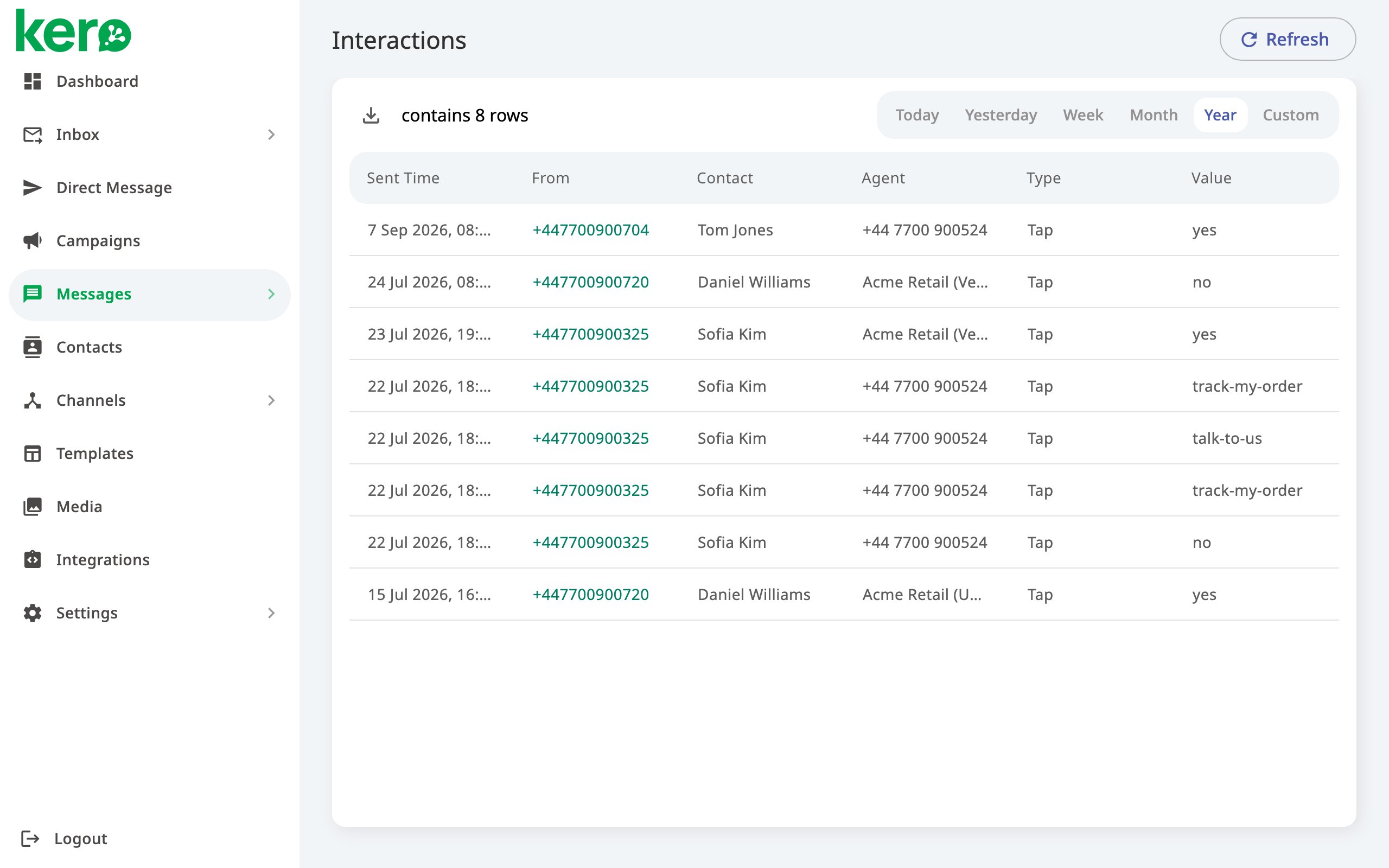
Understand the interactions list
Each row represents a button tap recorded by Kero.Understanding button values
The Value column shows the value configured for the button. This may differ from the text the customer sees on the button. For example, a button labelled Track my order could have a configured value such astrack_order.
The Interactions page records button taps. Messages that customers type themselves are not listed here. You can find those messages in the Inbox.
Choose a reporting period
By default, the Interactions page displays records from the current week. To change the reporting period:- Select Today, Yesterday, Week, Month or Year.
- Alternatively, select Custom to choose your own date range.
- Click Refresh to load the latest available interactions.
Open the customer’s conversation
You can move from an interaction record to the corresponding customer conversation.- Find the interaction you want to investigate.
- Click the mobile number in the From column.
- Kero opens the conversation associated with that customer.
Download interaction records
You can export the interactions list to a CSV file for further analysis.- Open Messages → Interactions.
- Select the reporting period you want to analyse.
- Click the download icon above the list.
- Save the CSV file to your computer.
Related guides
Understand message statistics
Review outgoing message volumes and delivery statistics.
View sent messages and delivery status
Check individual messages, delivery statuses and failure reasons.