
Open Sent Statistics
- Sign in to your Kero account.
- Navigate to Messages → Sent Statistics.
- Review the statistics for the selected reporting period.
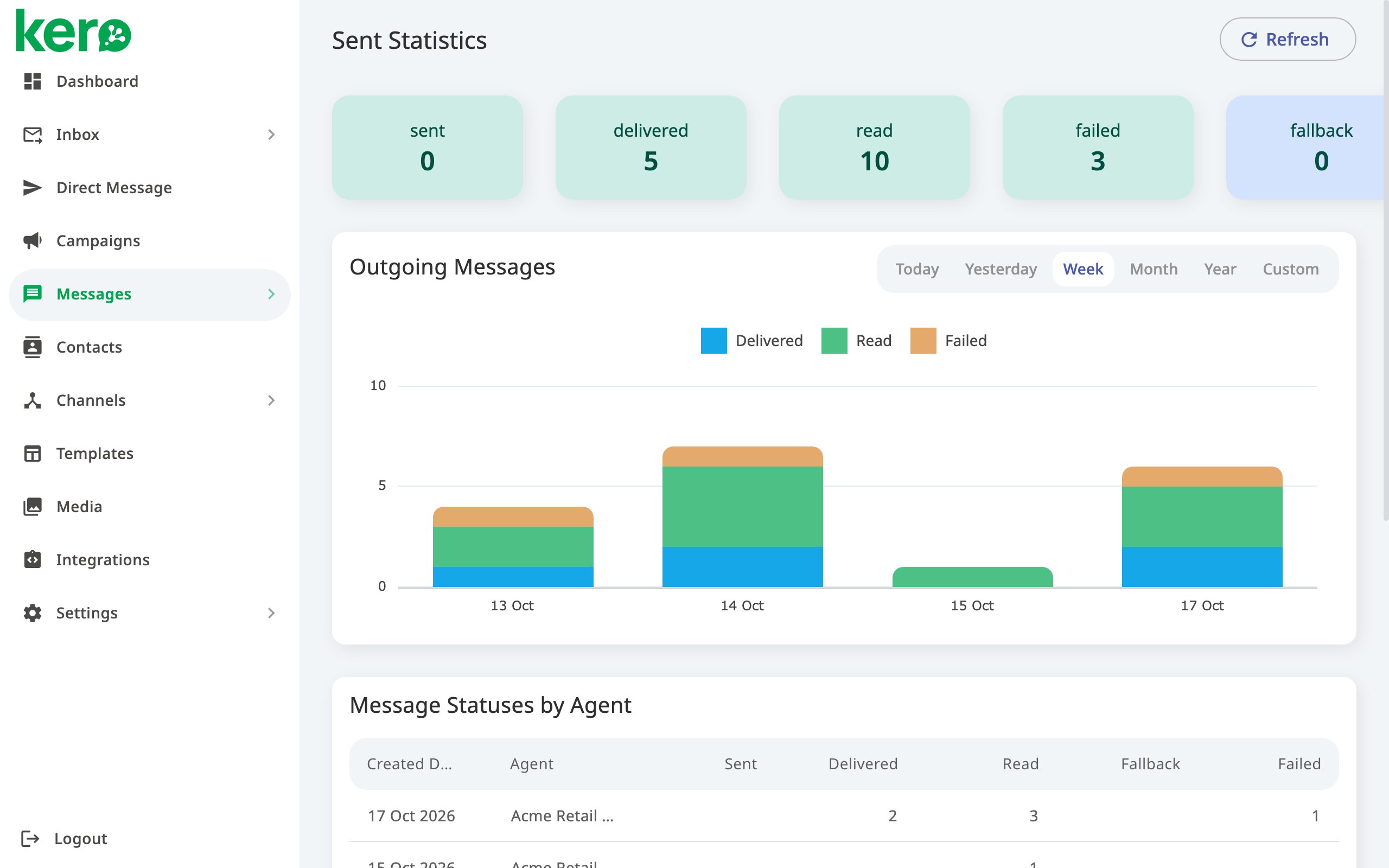
Sent Statistics showing message status totals, daily outgoing messages and delivery statuses by agent.
Message status totals
At the top of the page, you’ll see the total number of messages for each reported status:- Sent – Messages submitted to a messaging provider or network.
- Delivered – Messages with a reported delivery confirmation.
- Read – Messages with a reported read confirmation.
- Failed – Messages with an unsuccessful delivery outcome.
- Fallback – Messages for which Kero attempted another configured messaging channel.
Delivery and read confirmations depend on the messaging channel and information received from providers. SMS does not support read receipts, and not all networks provide definitive delivery confirmations.
Outgoing Messages
The Outgoing Messages chart shows your messaging activity by day. Each bar represents a day, with different colours indicating the number of messages in each status. Hover over a bar to see the message counts for that day. This chart helps you identify changes in messaging volumes and delivery outcomes over time.Message Statuses by Agent
The Message Statuses by Agent table provides a more detailed breakdown of messaging activity. Each row represents a day and an agent, showing the number of messages recorded against each delivery status. Use this table to compare messaging activity across agents and identify where delivery failures may need further investigation.Change the reporting period
You can review statistics for different periods using the date options at the top of the page.- Select Today, Yesterday, Week, Month or Year.
- Alternatively, select Custom to choose your own date range.
- Review the updated statistics.
- Click Refresh to retrieve the latest available information.
Investigate delivery issues
Sent Statistics helps you identify potential problems, but it does not show the reason for each individual message failure. If you notice an unusually high number of failed messages:- Check Message Statuses by Agent to identify which agents are affected.
- Navigate to Messages → Sent Messages.
- Select the same reporting period.
- Review the Status and Reason columns for the affected messages.
- Click a message’s Sent Time to view additional details.
Message statuses can change as providers return updated delivery information. The absence of a delivery confirmation does not necessarily mean a message has failed.