
Open Sent Messages
- Log in to your Kero account.
- From the left navigation menu, select Messages.
- Click Sent Messages.
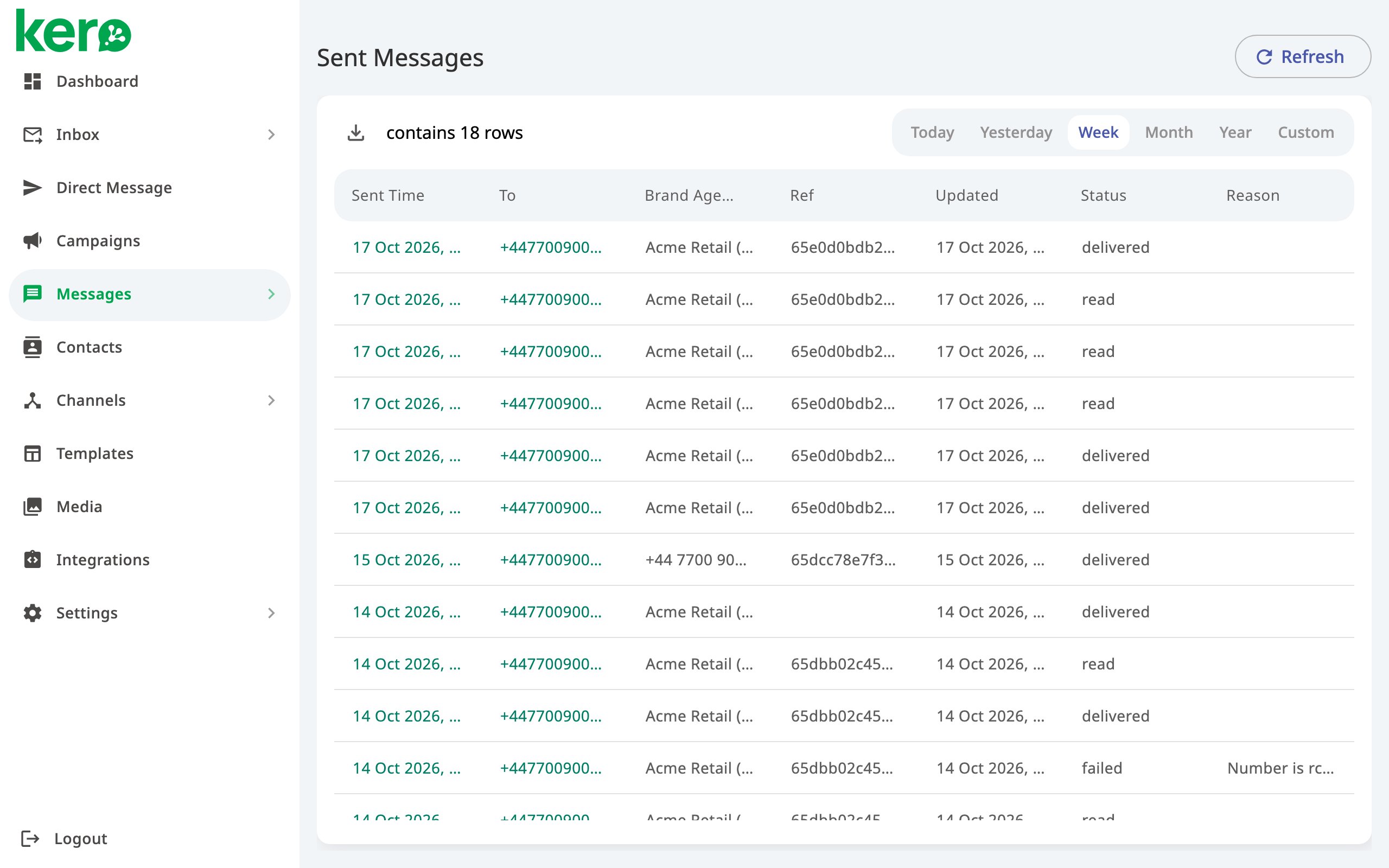
Understand the message list
Each row represents an outgoing message.Choose a reporting period
By default, Kero displays messages sent during the current week. To view a different period:- Select Today, Yesterday, Week, Month or Year.
- Alternatively, select Custom to choose your own date range.
- Click Refresh to load the latest available statuses.
View an individual message
To investigate a particular message:- Find the message in the Sent Messages list.
- Click its Sent Time.
- The Message Details panel opens beside the list.
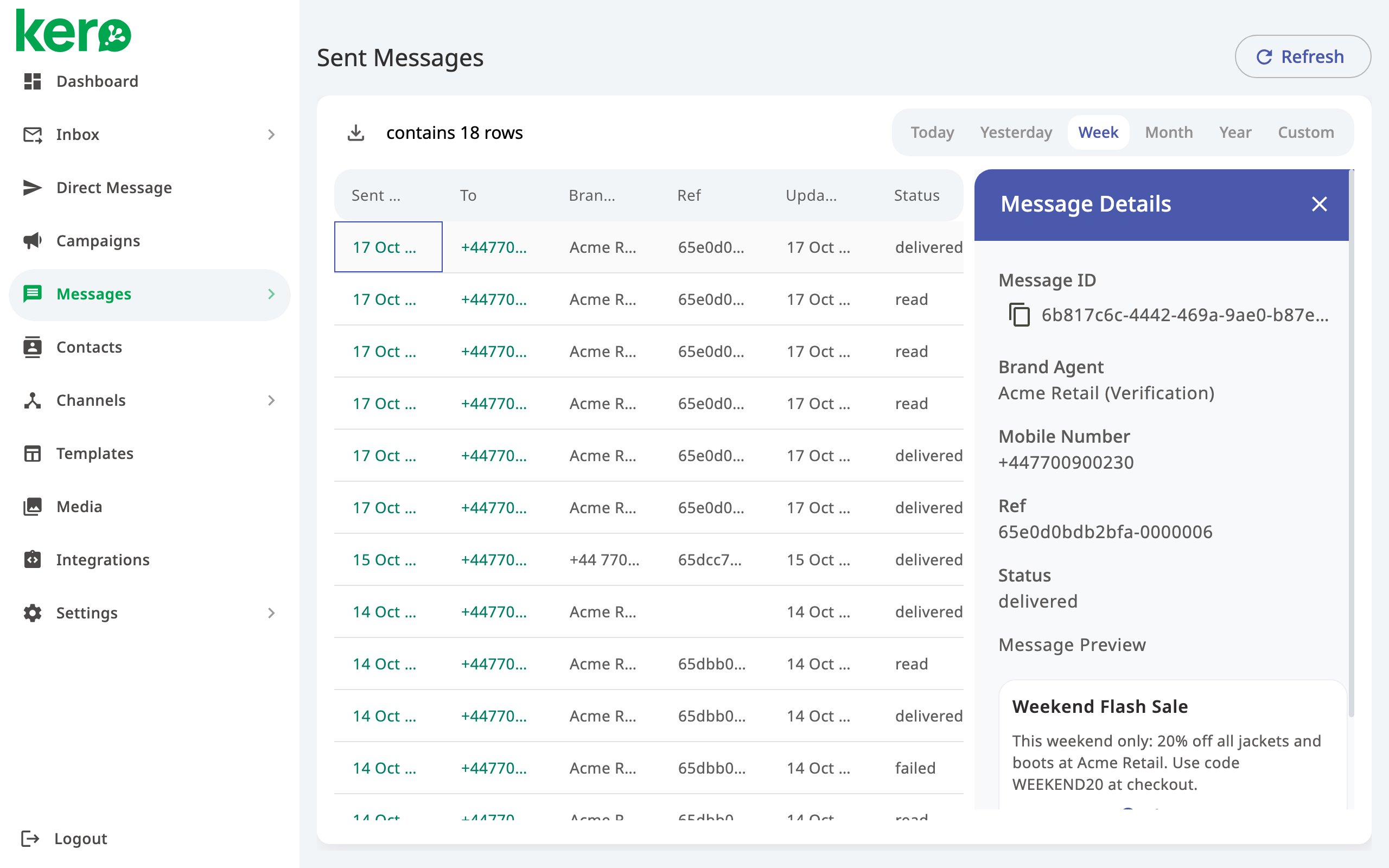
- Message ID: A unique identifier that you can copy when contacting Kero Support.
- Brand Agent: The Agent that sent the message.
- Mobile Number: The recipient’s mobile number.
- Ref: The message reference.
- Sender ID: The sending name or number for an SMS message.
- Status and Reason: The reported message status and any available failure reason.
- Charge Type: How the message is charged, when known.
- Message Preview: A preview of the message received by the customer.
Investigate failed messages
If a message has failed:- Find the message in Sent Messages.
- Check the Reason column.
- Click Sent Time to open the Message Details panel.
- Review the status and failure reason before deciding what to do next.
Delivery information depends on the messaging channel and the status information returned by the provider. Not every channel reports the same statuses.
Download your message records
You can export the message list for further analysis or recordkeeping.- Open Messages → Sent Messages.
- Select the reporting period you need.
- Click the download icon above the message list.
- Save the CSV file to your computer.
Related guides
Understand message statistics
View message volumes and delivery statistics across your Agents.
Track customer interactions
Understand how customers interact with buttons in your messages.