
Open your message statistics
- Log in to your Kero account.
- From the left navigation menu, select Messages.
- Click Sent Statistics.
Understand your message statistics
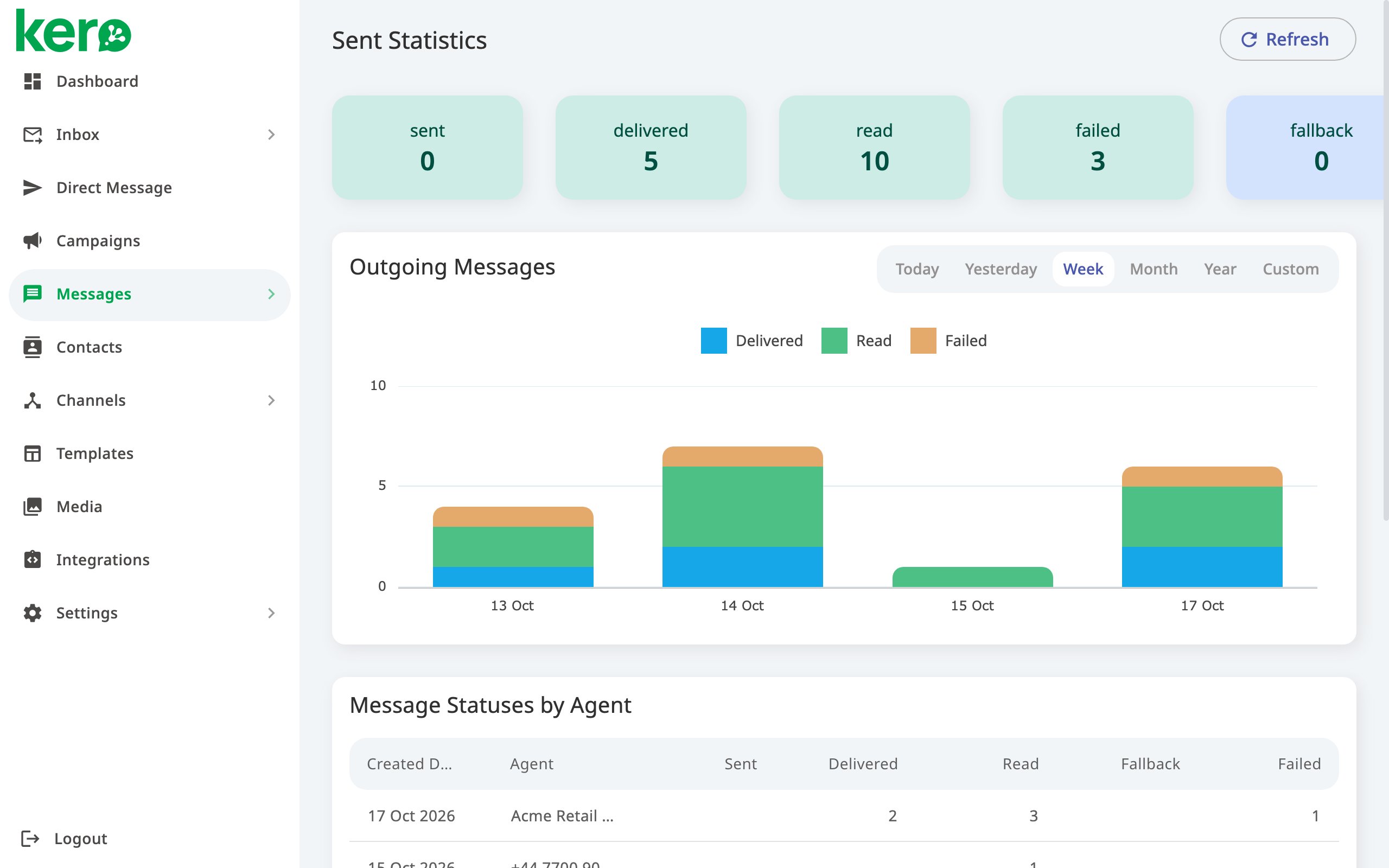
The Sent Statistics page has three main sections.1. Message status totals
At the top of the page, you’ll find a summary of your outgoing messages grouped by status. These totals help you quickly see how many messages have been sent, delivered, read or failed.2. Outgoing Messages
The Outgoing Messages chart displays your messaging activity by day. Each bar represents a day, with colours indicating the different message statuses. Hover over a bar to see the message counts for that day. This chart is useful for identifying changes in sending volumes and spotting days with unusually high failure counts.3. Message Statuses by Agent
The Message Statuses by Agent table provides a more detailed breakdown of messaging activity. Each row shows the message counts for a particular Agent on a particular day, grouped by status. Use this table to compare activity across your Agents and identify where delivery problems may be occurring.What do the message statuses mean?
Message status information can vary by messaging channel. For example, a read status may not be available for every SMS, RCS or WhatsApp message.
Choose a reporting period
By default, Sent Statistics displays the current week. To change the reporting period:- Select Today, Yesterday, Week, Month or Year.
- Alternatively, select Custom to choose your own date range.
- Click Refresh to load the latest available statistics.
Investigate failed messages
If your statistics show failed messages, you can investigate them individually.- From the left navigation menu, open Messages.
- Select Sent Messages.
- Choose the relevant reporting period.
- Find the failed message and check the Reason column for more information.
Sent Statistics shows how many messages failed, but not the individual failure reasons. These are available in Sent Messages.
Related guides
View sent messages and delivery status
Review individual outgoing messages, their statuses and failure reasons.
Track customer interactions
See how customers interact with buttons in your messages.